> For the complete documentation index, see [llms.txt](https://docs.trada.io/llms.txt). Markdown versions of documentation pages are available by appending `.md` to page URLs; this page is available as [Markdown](https://docs.trada.io/account-and-security/account-security.md).
# Your profile
Manage your name, certificate name, timezone, and other profile details.
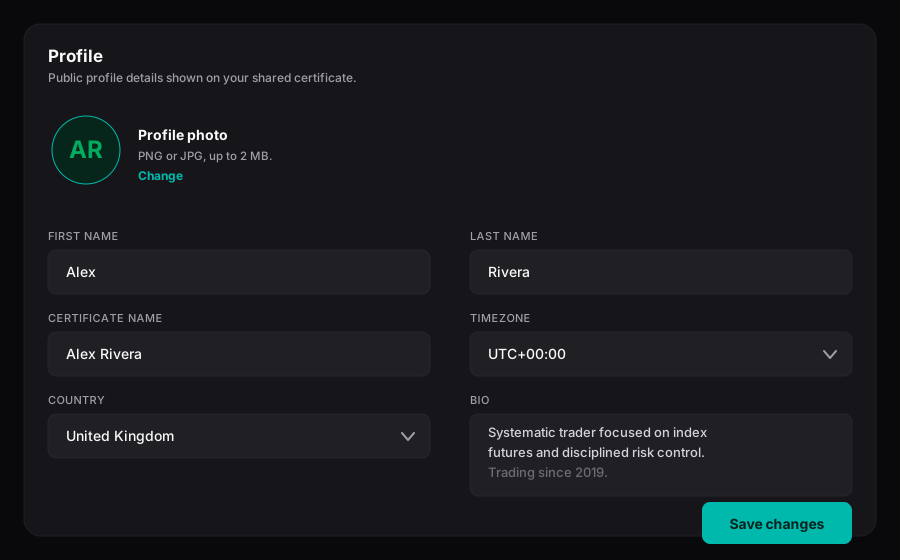
Your profile holds the personal details Trada uses across the dashboard — your name, the name shown on your shared certificate links, your timezone, and how you appear in the app. Open it from the user menu in the top navigation, or go directly to `/profile`.
The profile opens on the **Account** tab by default. This page covers that tab; the **Security** and **Notifications** tabs are documented separately and linked at the bottom.
Your profile — name, certificate name, timezone, and bio.
## Open your profile
{% stepper %}
{% step %}
### Open the user menu
Select your avatar in the top navigation, then choose **Profile**.
{% endstep %}
{% step %}
### Land on the Account tab
The **Account** tab loads first and shows your details in read-only mode. Fields are locked until you enter edit mode.
{% endstep %}
{% endstepper %}
{% hint style="info" %}
The Account tab is available on every plan, including Free. No profile field is gated behind a subscription.
{% endhint %}
## Edit your details
Fields are read-only until you switch the tab into edit mode.
{% stepper %}
{% step %}
### Select Edit Profile
The **Edit Profile** button unlocks every field except **Email**, and enables the avatar upload overlay.
{% endstep %}
{% step %}
### Make your changes
Update any field. The **Save Changes** button stays disabled until you change something, then becomes active.
{% endstep %}
{% step %}
### Select Save Changes
Trada validates your entries and saves. On success the tab returns to read-only mode. If validation fails, inline messages appear below the fields that need attention.
{% endstep %}
{% endstepper %}
{% hint style="info" %}
If you switch tabs or navigate away with unsaved changes, Trada prompts you to **Save Changes**, **Discard Changes**, or **Cancel** before leaving. Saved changes sync across your signed-in devices on the next refresh.
{% endhint %}
## Review your profile fields
| Field | Editable | Notes |
| -------------------- | -------- | -------------------------------------------------------------------------------------- |
| **Avatar** | Yes | Uploaded image, or your initials as a fallback. Uploads immediately, no save required. |
| **First Name** | Yes | Required. Feeds the certificate name preview. |
| **Last Name** | Yes | Required. Feeds the certificate name preview. |
| **Certificate Name** | Yes | Controls the name shown on your shared certificate links. See below. |
| **Email** | No | Fixed in this version — the address you sign in with. |
| **Phone Number** | Yes | Optional. Free text, no format required. |
| **Timezone** | Yes | Affects every timestamp in the app. See below. |
| **Country** | Yes | Optional. Selected from a list. |
| **City** | Yes | Optional. Available to reuse as a billing address at checkout. |
| **Address** | Yes | Optional. Available to reuse as a billing address at checkout. |
| **Bio** | Yes | Optional. Up to 500 characters, with a live counter. |
{% hint style="info" %}
Your **Email** can't be edited here in this version. It's the address you use to sign in with Google or with email and password.
{% endhint %}
## Set your certificate name
**Certificate Name** decides which name appears on the certificate you share as a live, read-only link. Choose one of three options:
| Option | Shown on the certificate |
| -------------- | --------------------------- |
| **Full Name** | Your first and last name |
| **First Name** | Your first name only |
| **Nickname** | A custom nickname you enter |
Selecting **Nickname** reveals an input field (up to 50 characters). A preview beside the selector shows exactly what a certificate will display as you type.
{% hint style="info" %}
Certificates are rendered live as read-only links, not files. Changing your certificate name updates the name used the next time a certificate is generated — it doesn't alter a link you've already shared. See [Certificates](/sharing/certificates.md).
{% endhint %}
## Upload a profile picture
In edit mode, select your avatar to open the file picker.
* Supported formats: **JPG** and **PNG**
* Maximum size: **2 MB**
* After selecting a file, adjust the crop, then confirm — the image uploads on its own, without needing **Save Changes**
If you haven't uploaded a picture, Trada shows your initials on a colored background. A file over 2 MB or in an unsupported format is rejected with an on-screen message.
## Set your timezone
**Timezone** controls how every timestamp is displayed across the dashboard — trade times, journal entries, and session activity all follow it. Pick your zone from the selector; the change takes effect once you save.
## Manage account security
The Account tab is one of three tabs in your profile. The rest of this section covers the others:
| Page | What it covers |
| ----------------------------------------------------------------------------- | --------------------------------------------- |
| [Password & two-factor authentication](/account-and-security/password-2fa.md) | Change your password and turn on 2FA |
| [Active sessions](/account-and-security/sessions.md) | Review and sign out signed-in devices |
| [Notifications](/account-and-security/notifications.md) | Choose which in-app notifications you receive |
## Related
* [Password & two-factor authentication](/account-and-security/password-2fa.md)
* [Notifications](/account-and-security/notifications.md)
* [Certificates](/sharing/certificates.md)
* [FAQ](/reference/faq.md)
---
# Agent Instructions
This documentation is published with GitBook. GitBook is the documentation platform designed so that both humans and AI agents can read, navigate, and reason over technical content effectively. Learn more at gitbook.com.
## Querying This Documentation
If you need additional information that is not directly available in this page, you can query the documentation dynamically by asking a question.
Perform an HTTP GET request on the current page URL with the `ask` query parameter, and the optional `goal` query parameter:
```
GET https://docs.trada.io/account-and-security/account-security.md?ask=&goal=
```
`ask` is the immediate question: it should be specific, self-contained, and written in natural language.
`goal` is optional and describes the broader end goal you are ultimately trying to accomplish on behalf of the user. GitBook uses it to tailor the answer towards what is most useful for that goal.
The response will contain a direct answer to the question and relevant excerpts and sources from the documentation.
Use this mechanism when the answer is not explicitly present in the current page, you need clarification or additional context, or you want to retrieve related documentation sections.