> For the complete documentation index, see [llms.txt](https://docs.trada.io/llms.txt). Markdown versions of documentation pages are available by appending `.md` to page URLs; this page is available as [Markdown](https://docs.trada.io/account-and-security/notifications.md).
# Notifications
In-app alerts for copiers, accounts, deals, errors, and system events.
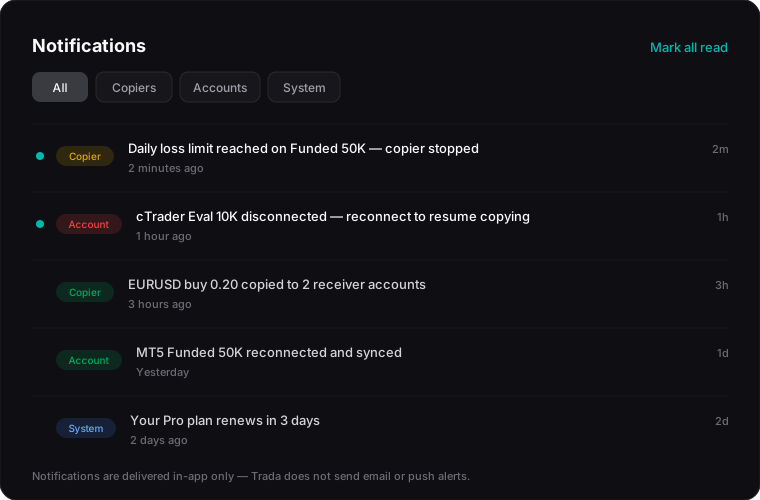
Trada keeps a running record of what happens across your connected accounts and copiers — executions, connection changes, closures, errors, and system notices. Every alert lives inside the app, on the bell icon and the dedicated **Notifications** page, which read from the same source.
The Notifications panel — copier, account, and system alerts, filterable by category. In-app only.
## Read from the bell or the page
The bell icon in the top navigation and the **Notifications** page share one notification stream — there is no separate feed. Anything you mark as read in one place shows as read in the other, and the unread count on the bell updates to match.
* The bell shows a short preview of your most recent alerts and the current unread count.
* The **Notifications** page shows the full history, with tabs and filters for narrowing down what you see.
{% hint style="info" %}
Notifications are **in-app only**. Trada does not send email or push notifications — you see alerts when you are signed in to the dashboard. Full history is available on every plan, with no category restrictions.
{% endhint %}
## Browse notification categories
Alerts are grouped into categories, each with its own tab on the **Notifications** page. The **All** tab shows everything in one list.
| Category | What it covers |
| ------------ | ----------------------------------------------------------------------------------------- |
| **Copiers** | Copy executions, sync events, stop-loss / take-profit adjustments, and copy failures |
| **Accounts** | Connection, disconnection, and reconnection events, plus latency alerts |
| **Deals** | Trade closures, partial closures, and trailing-stop triggers |
| **Errors** | Order rejections, insufficient-margin notices, dropped connections, and rate-limit alerts |
| **System** | Scheduled-maintenance notices, billing status, and product updates |
Notifications are always sorted newest first. Unread items are marked with an indicator but stay in strict time order — they do not float to the top.
## Filter to what you need
Two filters work alongside the category tabs and can be combined. They apply immediately, and active filters appear as removable badges you can clear one at a time or all at once with **Clear all**.
{% stepper %}
{% step %}
### Pick a category
Use the tabs — **All**, **Copiers**, **Accounts**, **Deals**, **Errors**, **System** — to scope the list to one type of event.
{% endstep %}
{% step %}
### Filter by read status
Choose **All**, **Unread**, or **Read** to focus on what you have not seen yet or revisit what you already handled.
{% endstep %}
{% step %}
### Filter by date
Narrow to **Today**, **This Week**, **This Month**, or leave it at **All Time**. Date ranges follow your local timezone.
{% endstep %}
{% endstepper %}
Filters and pagination reset to their defaults when you leave and return to the page.
## Mark notifications as read
Selecting a notification marks it as read, and the status updates right away. To clear several at once, use **Mark all as read** — it applies only to the notifications in your current filtered view, not your entire history. The button is disabled when nothing in view is unread.
## Know the retention limits
Trada keeps a rolling window of recent alerts rather than a permanent archive.
| Limit | Behavior |
| ------------------ | ------------------------------------------------------------------------------------ |
| **30 days** | Notifications older than 30 days are removed automatically. |
| **1,000 per user** | Once you reach 1,000 stored notifications, the oldest is removed as new ones arrive. |
{% hint style="warning" %}
Removed notifications cannot be recovered — there is no archive or trash, and no way to export or download your notification history. Alerts you want to keep should be acted on while they are in the window.
{% endhint %}
## Related
* [Password & 2FA](/account-and-security/password-2fa.md)
* [Sessions](/account-and-security/sessions.md)
* [Copy trading](/copy-trading/copy-trading.md)
* [Connecting accounts](/connecting-accounts/connecting-accounts.md)
---
# Agent Instructions
This documentation is published with GitBook. GitBook is the documentation platform designed so that both humans and AI agents can read, navigate, and reason over technical content effectively. Learn more at gitbook.com.
## Querying This Documentation
If you need additional information that is not directly available in this page, you can query the documentation dynamically by asking a question.
Perform an HTTP GET request on the current page URL with the `ask` query parameter, and the optional `goal` query parameter:
```
GET https://docs.trada.io/account-and-security/notifications.md?ask=&goal=
```
`ask` is the immediate question: it should be specific, self-contained, and written in natural language.
`goal` is optional and describes the broader end goal you are ultimately trying to accomplish on behalf of the user. GitBook uses it to tailor the answer towards what is most useful for that goal.
The response will contain a direct answer to the question and relevant excerpts and sources from the documentation.
Use this mechanism when the answer is not explicitly present in the current page, you need clarification or additional context, or you want to retrieve related documentation sections.