> For the complete documentation index, see [llms.txt](https://docs.trada.io/llms.txt). Markdown versions of documentation pages are available by appending `.md` to page URLs; this page is available as [Markdown](https://docs.trada.io/account-and-security/password-2fa.md).
# Password & two-factor (2FA)
Change your password and secure your account with two-factor authentication.
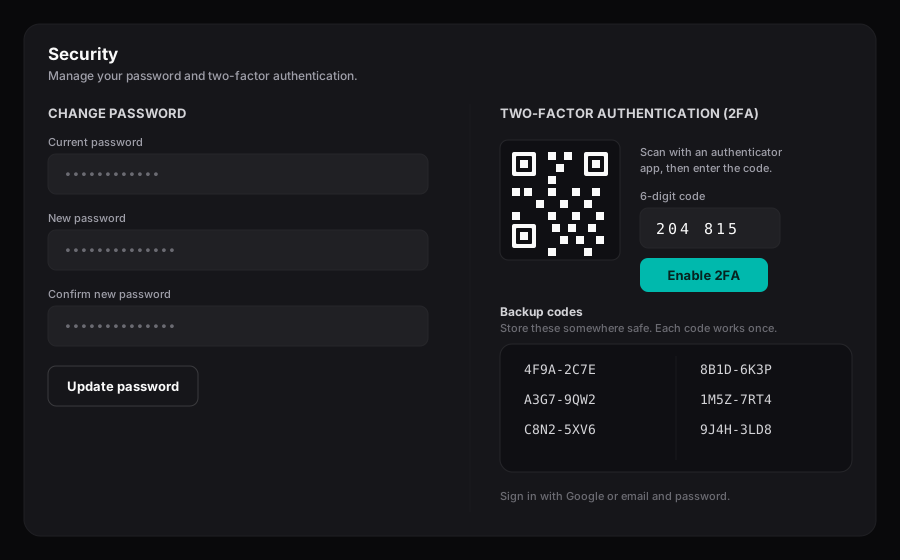
Trada keeps account security in one place. From **Settings → Security** you can update your password and turn on two-factor authentication (2FA) with an authenticator app.
The Security panel — change your password and set up two-factor authentication.
## Sign in with Google or email and password
Trada supports two sign-in methods, and only these two:
* **Google** — sign in with your Google account.
* **Email and password** — the credentials you set when you created your account.
{% hint style="info" %}
No other sign-in providers are available. If you signed up with Google, password settings apply once an email-and-password login is linked to your account.
{% endhint %}
## Change your password
Open the **Security** tab to see when your password was last changed, then update it from the change-password dialog.
{% stepper %}
{% step %}
### Open the change-password dialog
In **Settings → Security**, under **Security Settings**, select **Change Password**.
{% endstep %}
{% step %}
### Enter your current password
Type your **Current Password**. Trada verifies it before accepting a new one. Use the eye icon to show or hide any field.
{% endstep %}
{% step %}
### Set a new password
Enter your **New Password** and **Confirm New Password**. A strength meter updates as you type. Both entries must match, and the new password must meet every requirement below.
{% endstep %}
{% step %}
### Save
Select **Change Password**. On success the dialog closes and a confirmation appears.
{% endstep %}
{% endstepper %}
### Password requirements
| Requirement | Rule |
| ----------------- | ------------------------------ |
| Length | At least 8 characters |
| Uppercase | At least one uppercase letter |
| Number | At least one number |
| Special character | At least one special character |
{% hint style="warning" %}
Changing your password signs out every other active session. You stay signed in on the device you used to make the change; all other devices must sign in again. Review your devices on the [Active sessions](/account-and-security/sessions.md) page.
{% endhint %}
## Turn on two-factor authentication
2FA adds a second step at sign-in: a six-digit code from an authenticator app (TOTP), in addition to your password.
{% stepper %}
{% step %}
### Open the 2FA setup
In **Settings → Security**, toggle **Two-Factor Authentication** on. The setup dialog opens with a QR code.
{% endstep %}
{% step %}
### Add Trada to your authenticator app
Scan the QR code with a TOTP authenticator app. If your app can't scan, use the manual entry code shown under **Can't scan? Enter code manually**.
{% endstep %}
{% step %}
### Verify the six-digit code
Enter the current six-digit code from your authenticator app, then select **Enable 2FA**. Codes rotate every 30 seconds, so enter the one showing at that moment.
{% endstep %}
{% step %}
### Save your backup codes
Trada shows ten single-use backup codes. Save them somewhere safe before closing, then select **I've Saved My Backup Codes**.
{% endstep %}
{% endstepper %}
{% hint style="warning" %}
Backup codes are shown once and can't be viewed again. Each code works a single time if you lose access to your authenticator app. If you don't save them, you'll need to turn 2FA off and on again to generate a new set.
{% endhint %}
## Turn off two-factor authentication
{% stepper %}
{% step %}
### Start the disable flow
In **Settings → Security**, toggle **Two-Factor Authentication** off. A confirmation dialog opens.
{% endstep %}
{% step %}
### Confirm with your password and a code
Enter your current password and a current 2FA code, then select **Disable 2FA**.
{% endstep %}
{% endstepper %}
{% hint style="info" %}
Lost access to your authenticator app and out of backup codes? There's no self-service recovery. Contact support to regain access to your account.
{% endhint %}
## Related
* [Active sessions](/account-and-security/sessions.md) — review and sign out devices
* [Notifications](/account-and-security/notifications.md) — manage in-app alerts
* [Account & security](/account-and-security/account-security.md) — all account settings
* [Get started](/getting-started/quickstart.md) — set up your account
---
# Agent Instructions
This documentation is published with GitBook. GitBook is the documentation platform designed so that both humans and AI agents can read, navigate, and reason over technical content effectively. Learn more at gitbook.com.
## Querying This Documentation
If you need additional information that is not directly available in this page, you can query the documentation dynamically by asking a question.
Perform an HTTP GET request on the current page URL with the `ask` query parameter, and the optional `goal` query parameter:
```
GET https://docs.trada.io/account-and-security/password-2fa.md?ask=&goal=
```
`ask` is the immediate question: it should be specific, self-contained, and written in natural language.
`goal` is optional and describes the broader end goal you are ultimately trying to accomplish on behalf of the user. GitBook uses it to tailor the answer towards what is most useful for that goal.
The response will contain a direct answer to the question and relevant excerpts and sources from the documentation.
Use this mechanism when the answer is not explicitly present in the current page, you need clarification or additional context, or you want to retrieve related documentation sections.