> For the complete documentation index, see [llms.txt](https://docs.trada.io/llms.txt). Markdown versions of documentation pages are available by appending `.md` to page URLs; this page is available as [Markdown](https://docs.trada.io/account-and-security/sessions.md).
# Active sessions & devices
See where you're signed in and end sessions you don't recognise.
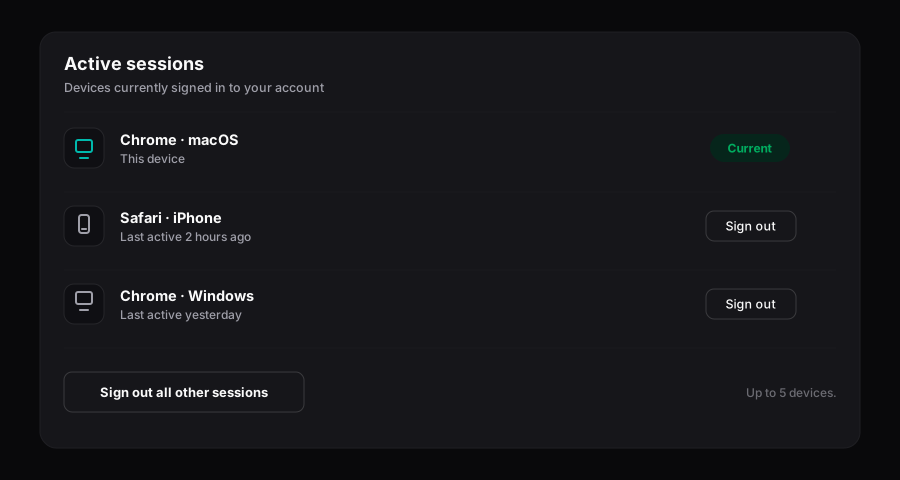
Trada keeps a list of every device currently signed in to your account. You can review that list at any time under **Profile → Security**, and sign out any device you don't recognise.
Active sessions — every signed-in device, with remote sign-out.
## Understand how sessions work
Each time you sign in on a new browser or device, Trada creates a separate session. Sessions run independently, so signing out on one device does not affect the others.
| Rule | Behaviour |
| ---------------------- | ------------------------------------------------------------------------------------------------ |
| **Session length** | A session stays active for **7 days** from its last activity, then expires automatically. |
| **Concurrent devices** | Up to **5** active sessions per account at once. |
| **6th sign-in** | If you sign in on a 6th device, the **oldest** session is signed out automatically to make room. |
| **Sign-in methods** | Sessions are created by **Google** or **email and password** sign-in only. |
{% hint style="info" %}
When Trada signs a device out for you — a 7-day expiry or the oldest session dropping off at the 5-device limit — it happens silently. Expiry and auto-termination do not generate an in-app notification.
{% endhint %}
## Review your active sessions
The **Active Sessions** card lists every device with a live session. Each row shows:
| Column | What it shows |
| --------------- | ------------------------------------------------------------------------------------------------------------------------------------------------------------ |
| **Device** | Browser and operating system, e.g. `Chrome on macOS`. Falls back to `Unknown Device` if it can't be read. |
| **Location** | City and country estimated from the connection's IP address, e.g. `New York, United States`. Falls back to `Unknown Location` if geolocation is unavailable. |
| **Last active** | A relative timestamp such as `2 minutes ago` or `5 days ago`, updated on each request from that device. |
| **Action** | A **Terminate** button, or a **Current** badge on the device you're using now. |
The device you're currently on appears at the top with a **Current** badge instead of a Terminate button. Location is an estimate and can be imprecise — treat it as a signal, not proof.
## Sign out a device you don't recognise
{% stepper %}
{% step %}
### Open the Security tab
Go to **Profile → Security** and find the **Active Sessions** card.
{% endstep %}
{% step %}
### Find the session
Look for a row whose device, location, or last-active time you don't recognise.
{% endstep %}
{% step %}
### Terminate it
Click **Terminate** on that row. The device is signed out immediately and the row disappears, and you'll see a **Session terminated** confirmation.
{% endstep %}
{% endstepper %}
{% hint style="warning" %}
Termination is immediate and has no confirmation dialog. The chosen device is signed out on its next request with no way to undo it — it simply has to sign in again. If you terminate the session you're currently using (from another device), you'll be signed out and sent back to the sign-in page.
{% endhint %}
If you recognise none of the extra sessions, terminate all of them and then change your password under **Password & two-factor authentication** to force a fresh sign-in everywhere.
## Know when other sessions end automatically
Some sessions are closed for you:
* **After 7 days of inactivity**, the session expires and is removed from the list.
* **When a 6th device signs in**, the oldest session is ended.
* **When you change your password**, every other session is signed out; only the device you changed it on stays active.
## Failed sign-in lockouts
To slow down guessing, Trada temporarily locks sign-in after repeated failures. Lockouts are tracked **per email address** and escalate on a fixed ladder.
| Failed attempts | Lockout |
| ----------------- | -------------- |
| 5 failed attempts | **15 minutes** |
| 5 more after that | **1 hour** |
| 5 more after that | **24 hours** |
During a lockout you'll see a message such as `Too many failed sign-in attempts. Please try again in 15 minutes.`
{% hint style="info" %}
A successful sign-in resets the failure count to zero, so the ladder starts fresh next time. Lockout timers are absolute — the countdown keeps running and is not reset by further attempts. If you've forgotten your password, use **Forgot password** rather than retrying, which avoids triggering a lockout.
{% endhint %}
## Related
* [Password & two-factor authentication](/account-and-security/password-2fa.md)
* [Notifications](/account-and-security/notifications.md)
* [Account & security overview](/account-and-security/account-security.md)
* [FAQ](/reference/faq.md)
---
# Agent Instructions
This documentation is published with GitBook. GitBook is the documentation platform designed so that both humans and AI agents can read, navigate, and reason over technical content effectively. Learn more at gitbook.com.
## Querying This Documentation
If you need additional information that is not directly available in this page, you can query the documentation dynamically by asking a question.
Perform an HTTP GET request on the current page URL with the `ask` query parameter, and the optional `goal` query parameter:
```
GET https://docs.trada.io/account-and-security/sessions.md?ask=&goal=
```
`ask` is the immediate question: it should be specific, self-contained, and written in natural language.
`goal` is optional and describes the broader end goal you are ultimately trying to accomplish on behalf of the user. GitBook uses it to tailor the answer towards what is most useful for that goal.
The response will contain a direct answer to the question and relevant excerpts and sources from the documentation.
Use this mechanism when the answer is not explicitly present in the current page, you need clarification or additional context, or you want to retrieve related documentation sections.