> For the complete documentation index, see [llms.txt](https://docs.trada.io/llms.txt). Markdown versions of documentation pages are available by appending `.md` to page URLs; this page is available as [Markdown](https://docs.trada.io/connecting-accounts/connect-forex.md).
# Connect a Forex or CFD account
Add a Forex or CFD account on MetaTrader, cTrader, TradeLocker, DXTrade, or MatchTrader.
Trada connects to your existing Forex and CFD accounts so the copier and journal can read them. Trada is the software layer on top of your broker or prop firm — it does not hold funds and it does not execute trades on your behalf.
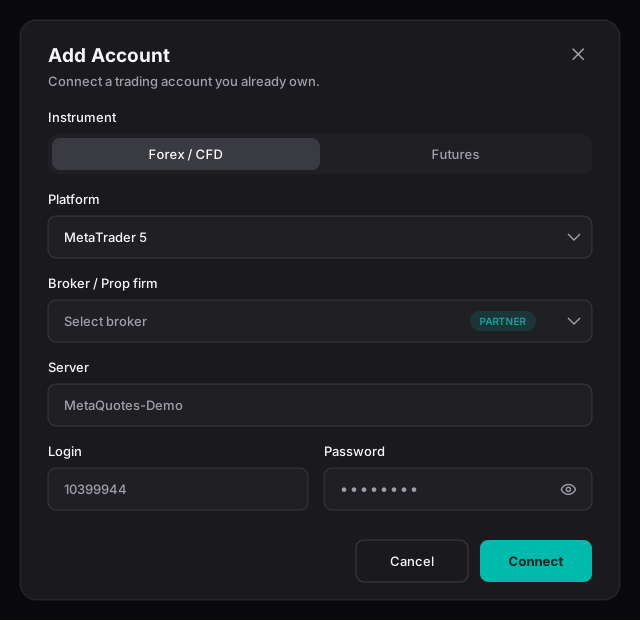
The Add Account dialog — pick the instrument, platform, and broker, then enter your connection details.
## Supported platforms
You can connect a Forex or CFD account on any of these platforms:
* **MetaTrader 4**
* **MetaTrader 5**
* **cTrader**
* **TradeLocker**
* **DXTrade**
* **MatchTrader**
Most platforms connect with credentials. **cTrader** connects through a secure sign-in (OAuth) instead — you authorize Trada in the provider's own window and never type your cTrader password into Trada. See [Supported platforms](/connecting-accounts/supported-platforms.md) and [Credential sets and secure sign-in](/connecting-accounts/credential-sets-oauth.md) for the field details per platform.
## Add an account
Open the **Forex** tab on the accounts page and select **Add Account** to open the dialog. The flow has four steps, applied in order — changing the instrument or platform partway through clears the selections below it.
{% stepper %}
{% step %}
### Choose the instrument
The dialog opens with **Forex** selected by default. Keep it selected for a Forex or CFD account.
{% endstep %}
{% step %}
### Select the platform
Choose one of **MetaTrader 4**, **MetaTrader 5**, **cTrader**, **TradeLocker**, **DXTrade**, or **MatchTrader**. The platform you pick here is locked once the account is connected.
{% endstep %}
{% step %}
### Select the broker
Pick your broker or prop firm from the list. Accounts held with partnered prop firms and brokers show a **PARTNER** badge here — the partner list is expanding.
{% endstep %}
{% step %}
### Enter connection details
Fill the credential fields your platform requires — for example, server, account ID, and password. For **cTrader**, use the secure sign-in button, authorize Trada in the provider window, then choose the account to connect. Select **Connect Account** to finish.
{% endstep %}
{% endstepper %}
Validation runs as you type, and fields stay editable if a connection attempt fails so you can correct and retry.
## Name your account (optional)
You can set a **Name** for the account during setup to tell similar accounts apart in the table. The nickname is limited to 24 characters. If you leave it blank, the account shows under its platform-provided ID.
{% hint style="info" %}
Account limits are shared across Forex and Futures and depend on your plan. Accounts held with partnered prop firms and brokers do not count toward the limit. See [Plans and billing](/plans-and-billing/plans-billing.md) and [Partner accounts](/connecting-accounts/partner-accounts.md).
{% endhint %}
## The platform is locked after connecting
Once an account is connected, its **Platform** cannot be changed. If you need a different platform, delete the account and add a new one.
Everything else stays editable. Open the three-dot menu on the account row and choose **Edit** to update the name, broker, server, or credentials, then select **Update Account**. The **Platform** field appears read-only in the edit dialog.
## Connect, disconnect, and sync
From the account's three-dot menu:
* **Disconnect** stops live data sync for that account. Your stored credentials are kept, so you can reconnect later.
* **Connect** re-authenticates a disconnected account using those stored credentials.
**Sync** refreshes the connection status and pulls the latest balance and trade data for all your Forex accounts at once, using existing credentials. If a sync does not complete, see [Syncing and troubleshooting](/connecting-accounts/syncing-troubleshooting.md).
## Delete an account
Deleting an account removes it from Trada permanently. Confirm twice — **Delete Account?** then **Confirm Account Deletion** — before it is removed.
{% hint style="warning" %}
Deleting an account is irreversible. It removes the account from every copier that uses it and unlinks its associated journal data. Existing trade history is preserved but is no longer tied to the deleted account, and its analytics stop updating.
{% endhint %}
## Related
* [Supported platforms](/connecting-accounts/supported-platforms.md)
* [Credential sets and secure sign-in](/connecting-accounts/credential-sets-oauth.md)
* [Syncing and troubleshooting](/connecting-accounts/syncing-troubleshooting.md)
* [Partner accounts](/connecting-accounts/partner-accounts.md)
---
# Agent Instructions
This documentation is published with GitBook. GitBook is the documentation platform designed so that both humans and AI agents can read, navigate, and reason over technical content effectively. Learn more at gitbook.com.
## Querying This Documentation
If you need additional information that is not directly available in this page, you can query the documentation dynamically by asking a question.
Perform an HTTP GET request on the current page URL with the `ask` query parameter, and the optional `goal` query parameter:
```
GET https://docs.trada.io/connecting-accounts/connect-forex.md?ask=&goal=
```
`ask` is the immediate question: it should be specific, self-contained, and written in natural language.
`goal` is optional and describes the broader end goal you are ultimately trying to accomplish on behalf of the user. GitBook uses it to tailor the answer towards what is most useful for that goal.
The response will contain a direct answer to the question and relevant excerpts and sources from the documentation.
Use this mechanism when the answer is not explicitly present in the current page, you need clarification or additional context, or you want to retrieve related documentation sections.