> For the complete documentation index, see [llms.txt](https://docs.trada.io/llms.txt). Markdown versions of documentation pages are available by appending `.md` to page URLs; this page is available as [Markdown](https://docs.trada.io/connecting-accounts/connect-forex.md).

# Connect a Forex or CFD account

Add a Forex or CFD account on MetaTrader, cTrader, TradeLocker, DXTrade, or MatchTrader.

Trada connects to your existing Forex and CFD accounts so the copier and journal can read them. Trada is software; you retain trading responsibility. It does not hold funds, and it only copies trades between accounts you connect and set up in a copier.

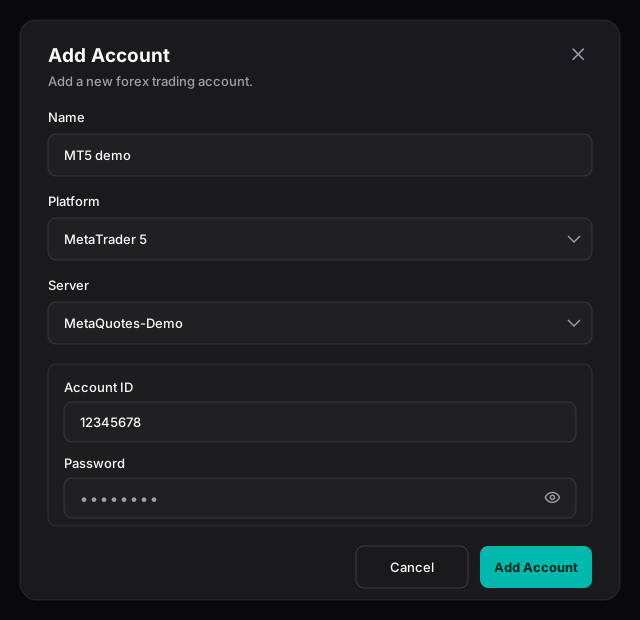
<figure><img src="https://1071438488-files.gitbook.io/~/files/v0/b/gitbook-x-prod.appspot.com/o/spaces%2FOsaVyFC53CtoAY5kabHr%2Fuploads%2Fgit-blob-73ed976aded1dd0119c443d61473b9784b5e5a34%2Fadd-account-dialog.svg?alt=media" alt="The Add Account dialog: name, platform, server, and login fields"><figcaption><p>The Add Account dialog — name the connection, pick the platform and server, then enter your login. Sample values are illustrative.</p></figcaption></figure>

## Check your platform is supported

You can connect a Forex or CFD account on any of these platforms:

* **MetaTrader 4**
* **MetaTrader 5**
* **cTrader**
* **TradeLocker**
* **DXTrade**
* **MatchTrader**

Most platforms connect with the login your broker or prop firm gave you. **cTrader** connects through a secure sign-in (OAuth) instead — you authorize Trada on cTrader's own sign-in page and never type your cTrader password into Trada. See [Supported platforms](/connecting-accounts/supported-platforms.md) for how each platform connects.

## Add an account

Open **Accounts**, stay on the **Forex** tab, and select **Add Account**. If the button reads **Limit Reached**, your plan's account limit is full — see [Plans and billing](/plans-and-billing/plans-billing.md).

{% stepper %}
{% step %}

### Name the connection

Enter a **Name** so you can tell this login apart from others. It is required (optional for cTrader), up to 24 characters, and must contain a letter or a number. The name labels the login, not each trading account: in the default **Nested** view it heads the row your accounts sit under.
{% endstep %}

{% step %}

### Select the platform

Choose one of **MetaTrader 4**, **MetaTrader 5**, **cTrader**, **TradeLocker**, **DXTrade**, or **MatchTrader**. Changing the platform clears the server and login fields below it.
{% endstep %}

{% step %}

### Select the server

Open **Server** and pick your broker's server. Type in the search box to filter the list. On some platforms, including TradeLocker, you can add a server that is not listed with **Can't find your broker? Add it** — see [Connect a TradeLocker account](#connect-a-tradelocker-account) below.
{% endstep %}

{% step %}

### Enter your login

The fields depend on the platform:

| Platform                   | What you enter                                                                            |
| -------------------------- | ----------------------------------------------------------------------------------------- |
| MetaTrader 4, MetaTrader 5 | **Account ID** and **Password**                                                           |
| TradeLocker, MatchTrader   | **Email** and **Password**                                                                |
| DXTrade                    | **Username** and **Password**                                                             |
| cTrader                    | No password. Select **Authenticate cTrader** and approve Trada on cTrader's sign-in page. |

Use the login your broker or prop firm sent you.
{% endstep %}

{% step %}

### Add the account

Select **Add Account**. What happens next depends on the platform:

* TradeLocker, DXTrade, MatchTrader: Trada checks the login straight away. If it works, the **Import Accounts** dialog opens: keep the accounts you want ticked and select **Import&#x20;*****N*****&#x20;Account(s)**. If the login is refused, the error shows under the form and your entries stay in place so you can correct them.
* MetaTrader 4, MetaTrader 5: the account is added to your list at once and reads **Disconnected** while Trada checks the login in the background. If the login is wrong, it stays **Disconnected**, its login shows **Invalid** in the **Nested** view, and you get an in-app notification. Delete the account and add it again with the correct login.
* cTrader: there is no **Add Account** button. After you approve Trada on cTrader's sign-in page, you come back to Trada and **Import Accounts** opens with your cTrader accounts ticked.

If you close **Import Accounts** before importing, don't add the same login again — Trada refuses it because the login is already saved. Switch to the **Nested** view and use **Import accounts** on that login's row.
{% endstep %}
{% endstepper %}

{% hint style="info" %}
Every account you add counts toward your plan's account limit, including disconnected ones. To free a slot, delete the account. See [Plans and billing](/plans-and-billing/plans-billing.md).
{% endhint %}

## Connect a TradeLocker account

TradeLocker accounts connect with the login you use on TradeLocker, plus your broker's server code and whether the account is Demo or Live. A connected TradeLocker account can be a sender or a receiver in your copiers.

<figure><img src="https://1071438488-files.gitbook.io/~/files/v0/b/gitbook-x-prod.appspot.com/o/spaces%2FOsaVyFC53CtoAY5kabHr%2Fuploads%2Fgit-blob-0813870352250b1826561a355d7b74a96653fd02%2Ftradelocker-add-broker.svg?alt=media" alt="The Add Account dialog with TradeLocker selected and the add-broker form open: Account type and Broker server"><figcaption><p>Adding a TradeLocker server that is not in the list. Sample values are illustrative.</p></figcaption></figure>

### Gather your TradeLocker details

Your broker or prop firm usually sends these in its welcome email:

* The email and password you log in to TradeLocker with.
* The broker server code. In the welcome email it is usually the line labelled Server; on the TradeLocker login screen it is what you type in the Server field. Type it exactly, capitals included.
* Whether the account is on TradeLocker's Demo or Live side — the one you select on the TradeLocker login screen. Your broker or prop firm sets this; it does not depend on whether the money is real. A login link starting with demo.tradelocker.com means Demo, and live.tradelocker.com means Live. If you still can't tell, ask the firm.

Then connect it:

{% stepper %}
{% step %}

### Start a TradeLocker connection

Open **Accounts**, then **Add Account**. Enter a **Name** and choose **TradeLocker** as the **Platform**.
{% endstep %}

{% step %}

### Pick your server, or add it

Open **Server** and search for your broker server code. If it is listed with (demo) or (live), pick the one that matches your account.

If it is listed without either, or not listed at all, select **Can't find your broker? Add it** and fill in:

* **Account type** — **Demo** or **Live**, matching your TradeLocker account.
* **Broker server** — the broker server code from your TradeLocker login screen. Type it exactly, capitals included.

Select **Add broker**. Your server is selected for you. A newly added server shows its account type in brackets, for example `YOURBROKER (demo)`; if Trada already lists that exact server, the listed entry is selected instead.
{% endstep %}

{% step %}

### Enter your TradeLocker login

Enter your TradeLocker **Email** and **Password**.
{% endstep %}

{% step %}

### Import your accounts

Select **Add Account**. Trada logs in to TradeLocker and finds every trading account under that login. In **Import Accounts**, all of them are ticked: untick any you don't want, and if the dialog says how many more accounts your plan allows, keep no more than that many ticked. Then select **Import&#x20;*****N*****&#x20;Account(s)**.

Each account appears as **TradeLocker Account** followed by its TradeLocker account ID. To rename one, use **Edit** on its row.
{% endstep %}
{% endstepper %}

### Connect without a Developer API Key

There is no field for a Developer API Key, and you don't need one to connect. Trada uses its own TradeLocker developer key when it copies your trades. If your broker gave you a key, you don't need to enter it anywhere. If copies to or from a TradeLocker account fail and your broker says its own key is required, contact support.

### Fix a failed TradeLocker connection

* **Authentication failed** — Trada couldn't log in to TradeLocker with these details. Check the email, the password, and the broker server code, including capitals. If you picked your server from the list, it may be the Demo one for a Live account or the other way round: add it with **Can't find your broker? Add it** and choose the matching **Account type**. If everything is right, wait a few minutes and try again, then contact support.
* **No accounts discovered for these TradeLocker credentials** — the login worked, but it holds no trading accounts yet. Check with your broker or prop firm that the account is active.

### Understand prices on open TradeLocker trades

For now, the price shown on an open TradeLocker trade stays at its entry price. The profit figure is live, and balance and equity update in real time.

## Find your accounts

The **Forex** tab shows your accounts in one of two views, switched with **Flat** and **Nested**:

* **Nested** (the default) shows one row per login, headed by the **Name** you gave it. Expand a login to see its trading accounts.
* **Flat** lists every trading account as its own row.

The account actions below — **Edit**, **Connect** or **Disconnect**, and **Delete** — are on each account's row: in the **Flat** view, or inside an expanded login in the **Nested** view.

{% hint style="warning" %}
In the **Nested** view, the bin icon on a login's own row is **Delete connection**. It removes that login and every trading account under it at once, with no confirmation step. To remove a single account, use **Delete** on the account's row instead.
{% endhint %}

## Edit an account

Select **Edit** (the pencil icon) on the account row to open **Edit Account**. You can change the **Name** and the **Broker**, then select **Save Changes**.

The platform, server, and login of a connected account cannot be changed there. If your login changes — for example, a new password — contact support.

## Connect and disconnect

Each account row has icon buttons for its actions:

* **Disconnect** (shown while the account reads **Connected**) stops live data sync for that account. Your stored login is kept, so you can reconnect later.
* **Connect** reconnects an account that reads **Disconnected**, using that stored login. For **Blocked**, **Unavailable**, or **Sync error**, see [Syncing and troubleshooting](/connecting-accounts/syncing-troubleshooting.md).

The **Connection** column reads **Connected**, **Syncing**, **Sync error**, **Blocked** (the broker is refusing the account), **Unavailable** (the broker no longer lists the account), or **Disconnected**. If a sync does not complete, see [Syncing and troubleshooting](/connecting-accounts/syncing-troubleshooting.md).

## Delete an account

Select **Delete** (the bin icon) on the account row. Confirm twice — **Delete Account?**, then **Continue**, then **Confirm Account Deletion** and **Delete Account** — before it is removed.

{% hint style="warning" %}
Deleting an account is irreversible and deletes its trades and history in Trada. If the account is the sender of a copier, that copier is deleted too. If it is a receiver in a copier, remove it from that copier before you delete it.
{% endhint %}

## Related

* [Supported platforms](/connecting-accounts/supported-platforms.md)
* [Syncing and troubleshooting](/connecting-accounts/syncing-troubleshooting.md)
