> For the complete documentation index, see [llms.txt](https://docs.trada.io/llms.txt). Markdown versions of documentation pages are available by appending `.md` to page URLs; this page is available as [Markdown](https://docs.trada.io/connecting-accounts/connect-futures.md).
# Connect a Futures account
Add a Futures account and enable the individual trading accounts under a single login.
A Futures connection is a single login that Trada uses to read one or more trading accounts. You connect once, then decide which of the auto-pulled accounts you want to track and manage.
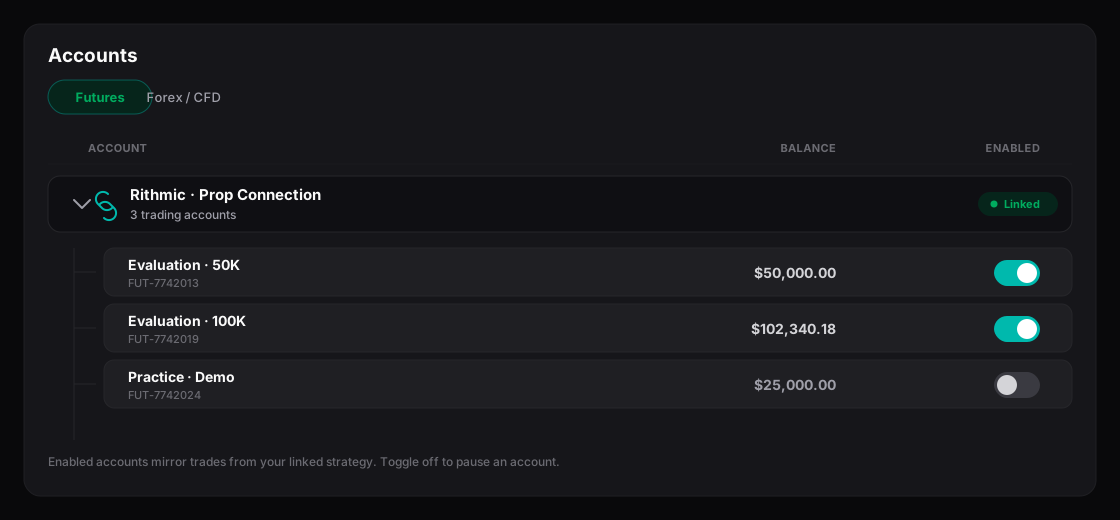
Futures accounts — one login exposes several trading accounts, each with an enable toggle.
## Understand the nested model
Futures platforms expose several trading accounts behind one set of credentials. Trada mirrors that structure: each **connection** (parent row) can hold many **trading accounts** (nested rows).
* One connection = one login to a Futures platform.
* Trada auto-pulls every trading account that login can see. You do not add accounts by hand.
* Each trading account has its own **Enable** toggle. Only the accounts you enable are tracked, journaled, and available to copiers.
* The **Active Accounts** column shows enabled over total for the connection, for example `2/5`.
Expand a connection with the chevron next to its name to see its trading accounts, their **ID**, **Name**, **Currency**, **Balance** (in the account's own currency), and **Enable** state.
## Add a Futures connection
Trada supports three Futures platforms: **NinjaTrader**, **Rithmic**, and **DXFeed**. All three connect with credentials — sign in to Trada itself uses Google or email and password.
{% stepper %}
{% step %}
### Open the Futures tab
Go to **Accounts** and switch to the **Futures** tab.
{% endstep %}
{% step %}
### Start a new connection
Select **Add Account** and choose your platform: **NinjaTrader**, **Rithmic**, or **DXFeed**.
{% endstep %}
{% step %}
### Enter your credentials
Fill in the fields for your platform, such as **Username** and **Password**, plus **Server** for Rithmic. Give the connection a **Name** so you can recognize it later.
{% endstep %}
{% step %}
### Enable the accounts you want
Once connected, expand the connection. Every trading account is pulled in **disabled** by default. Toggle **Enable** on each account you want Trada to track.
{% endstep %}
{% endstepper %}
## Enable and disable trading accounts
Enabling an account is what puts it to work in Trada. Disabled accounts stay listed under the connection but are not tracked or counted.
* Use the per-row **Enable** toggle to turn a single account on or off.
* Use **Enable All** or **Disable All** in the nested table header to act on every account in the connection at once.
* Newly discovered accounts always arrive disabled — you enable them deliberately.
Changes apply immediately. Enabling an account claims a plan slot; disabling one frees that slot right away.
## Count enabled accounts against your plan
Only **enabled** trading accounts count toward your plan limit, and the count is shared across Forex and Futures.
{% hint style="info" %}
Your plan limit is one combined pool. For example, on the Free Starter plan (2 accounts), one enabled Forex account plus one enabled Futures account uses `2/2`. To enable another, upgrade your plan, disable an account you are not using, or add a qualifying account from a partnered prop firm or broker.
{% endhint %}
When you are at your limit, the disabled toggles are locked and show a note explaining the limit. Disable any enabled account to immediately unlock the rest.
## Rename a trading account
Auto-pulled accounts carry the platform's own identifiers, which are rarely readable. You can rename any trading account to something meaningful, up to 24 characters. Names must be unique within a connection. The account **ID** shown in monospace is the platform-provided value and cannot be changed.
## Keep accounts up to date
New trading accounts on your platform are picked up on a page refresh or when you sync.
* Use **Sync** to refresh every Futures connection at once. It pulls the latest status, balances, and any newly added accounts.
* Discovered accounts appear disabled in the nested table with no separate alert, so check the **Active Accounts** count after a sync.
* If a connection shows **Disconnected**, reconnect it from the three-dot actions menu.
If accounts are missing or balances look stale, see the syncing and troubleshooting guide.
{% hint style="warning" %}
Deleting a connection is irreversible. It removes the connection and every trading account under it, stops any copiers using those accounts, and unlinks the connection from your journal data. Individual trading accounts cannot be deleted on their own.
{% endhint %}
## Related
* [Supported platforms](/connecting-accounts/supported-platforms.md)
* [Connect a Forex account](/connecting-accounts/connect-forex.md)
* [Syncing and troubleshooting](/connecting-accounts/syncing-troubleshooting.md)
* [Plans and billing](/plans-and-billing/plans-billing.md)
---
# Agent Instructions
This documentation is published with GitBook. GitBook is the documentation platform designed so that both humans and AI agents can read, navigate, and reason over technical content effectively. Learn more at gitbook.com.
## Querying This Documentation
If you need additional information that is not directly available in this page, you can query the documentation dynamically by asking a question.
Perform an HTTP GET request on the current page URL with the `ask` query parameter, and the optional `goal` query parameter:
```
GET https://docs.trada.io/connecting-accounts/connect-futures.md?ask=&goal=
```
`ask` is the immediate question: it should be specific, self-contained, and written in natural language.
`goal` is optional and describes the broader end goal you are ultimately trying to accomplish on behalf of the user. GitBook uses it to tailor the answer towards what is most useful for that goal.
The response will contain a direct answer to the question and relevant excerpts and sources from the documentation.
Use this mechanism when the answer is not explicitly present in the current page, you need clarification or additional context, or you want to retrieve related documentation sections.