> For the complete documentation index, see [llms.txt](https://docs.trada.io/llms.txt). Markdown versions of documentation pages are available by appending `.md` to page URLs; this page is available as [Markdown](https://docs.trada.io/connecting-accounts/credential-sets-oauth.md).
# Credential sets & OAuth brokers
How Trada stores connection details as reusable credential sets, and which brokers connect by secure sign-in.
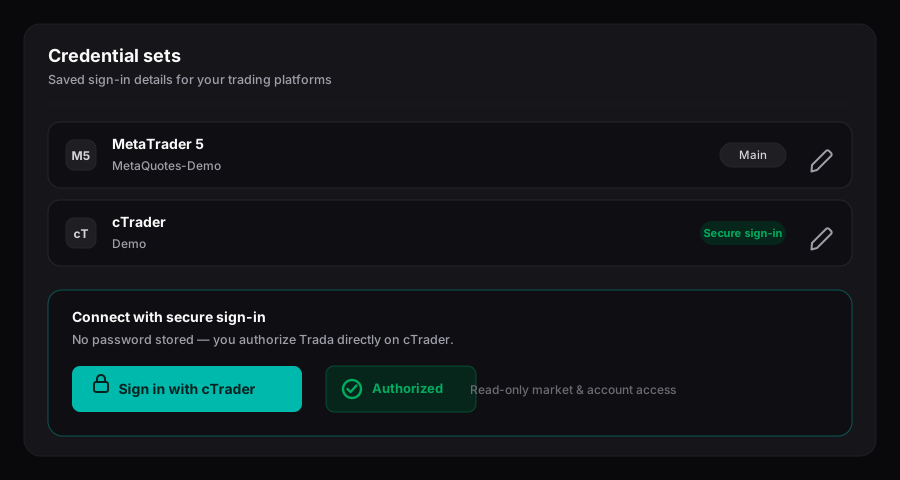
Trada connects to your trading accounts using stored connection details called credential sets. This page explains what a credential set holds, and how cTrader connects by secure sign-in while the other platforms connect with credentials.
Credential sets — saved connection details, plus secure sign-in for cTrader.
## Understand credential sets
A credential set is the stored connection detail for a platform or broker — the authorization or connection fields Trada needs to read an account. Keeping these as a reusable set means you set up the connection method once, then attach it when you add an account instead of re-entering everything each time.
Credential sets are managed at `/credential-sets`, a pre-connection step. You usually arrive there from the **Add Account** dialog when the platform you picked needs authorization or API-key setup before the account can be attached. Secure sign-in setup lives at `/credential-sets/oauth`.
Trada is journaling and trade-copier software — not a broker or trading platform. A credential set only lets Trada read and (where you configure copying) act on the account you connect; you keep your account with your broker or prop firm.
{% hint style="info" %}
Storage and encryption of connection details are handled by the platform. Trada's documentation does not describe the internal security implementation.
{% endhint %}
## Connect by secure sign-in (cTrader)
cTrader connects through secure sign-in (OAuth). Instead of typing account credentials into Trada, you authorize the connection on cTrader's own sign-in screen, and cTrader returns access to Trada.
{% stepper %}
{% step %}
### Open the Add Account dialog
On `/accounts/forex`, click **Add Account**. Choose the Forex/CFD instrument, then select **cTrader** as the platform.
{% endstep %}
{% step %}
### Start secure sign-in
Trada opens the cTrader authorization flow. The connection moves through its states — idle, loading, connected — as authorization completes.
{% endstep %}
{% step %}
### Sign in at cTrader
Complete sign-in on cTrader's screen. You enter your details with cTrader, not with Trada.
{% endstep %}
{% step %}
### Select the account to connect
After authorization, choose which account to attach. The connection is then added and appears in your Forex accounts table.
{% endstep %}
{% endstepper %}
If authorization does not complete, Trada shows "Authorization failed. Please try again." and returns the dialog to the platform-selection step so you can retry.
## Connect with credentials
The other platforms connect with credentials or API-key fields rather than secure sign-in. The public platform list is:
* **Forex / CFD** — MetaTrader 4, MetaTrader 5, cTrader (secure sign-in), TradeLocker, DXTrade, MatchTrader
* **Futures** — NinjaTrader, Rithmic, DXFeed
For a credential-based platform, the **Add Account** dialog follows a linear four-step flow.
{% stepper %}
{% step %}
### Select the instrument
Choose Forex/CFD or Futures. Changing the instrument later clears the downstream selections.
{% endstep %}
{% step %}
### Select the platform
Pick your platform from the ones available for that instrument.
{% endstep %}
{% step %}
### Select the broker or prop firm
Choose your broker or prop firm. A **PARTNER** badge marks accounts that may qualify for Free Starter benefits — see [Partner accounts](/connecting-accounts/partner-accounts.md).
{% endstep %}
{% step %}
### Enter the connection fields and connect
Fill in the required fields for that platform, then click **Connect Account**. On success the account is validated and added to your accounts table.
{% endstep %}
{% endstepper %}
## Manage connected accounts
Once an account is attached, you manage it from the accounts tables at `/accounts/forex` and `/accounts/futures`: **Edit** the name, **Connect** or **Disconnect**, or **Delete** with a two-step confirmation. Connection status shows as Connected, Disconnected, or Syncing.
{% hint style="warning" %}
When editing an account, the platform is read-only. To move an account to a different platform, delete it and add it again through the **Add Account** dialog.
{% endhint %}
For what happens when an account stops updating, and how to re-establish a dropped connection, see [Syncing & troubleshooting](/connecting-accounts/syncing-troubleshooting.md).
## Related
* [Supported platforms](/connecting-accounts/supported-platforms.md)
* [Connect a Forex account](/connecting-accounts/connect-forex.md)
* [Connect a Futures account](/connecting-accounts/connect-futures.md)
* [Partner accounts](/connecting-accounts/partner-accounts.md)
---
# Agent Instructions
This documentation is published with GitBook. GitBook is the documentation platform designed so that both humans and AI agents can read, navigate, and reason over technical content effectively. Learn more at gitbook.com.
## Querying This Documentation
If you need additional information that is not directly available in this page, you can query the documentation dynamically by asking a question.
Perform an HTTP GET request on the current page URL with the `ask` query parameter, and the optional `goal` query parameter:
```
GET https://docs.trada.io/connecting-accounts/credential-sets-oauth.md?ask=&goal=
```
`ask` is the immediate question: it should be specific, self-contained, and written in natural language.
`goal` is optional and describes the broader end goal you are ultimately trying to accomplish on behalf of the user. GitBook uses it to tailor the answer towards what is most useful for that goal.
The response will contain a direct answer to the question and relevant excerpts and sources from the documentation.
Use this mechanism when the answer is not explicitly present in the current page, you need clarification or additional context, or you want to retrieve related documentation sections.