> For the complete documentation index, see [llms.txt](https://docs.trada.io/llms.txt). Markdown versions of documentation pages are available by appending `.md` to page URLs; this page is available as [Markdown](https://docs.trada.io/connecting-accounts/supported-platforms.md).
# Supported platforms
The Forex and Futures platforms Trada connects to, how each authenticates, and which can copy versus journal.
Trada connects to the platforms and brokers you already trade on, replicates trades between the accounts you own, and journals every closed trade. This page is the reference matrix: which platforms are supported, how each one authenticates, and where copying differs from journaling.
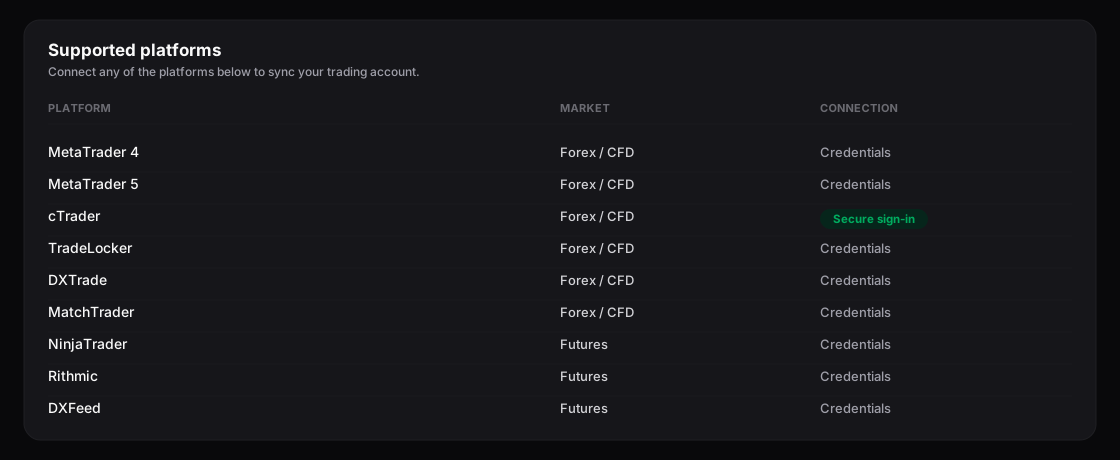
The supported-platforms matrix — market and connection type for each of the nine.
## Compare the supported platforms
Trada supports nine platforms across two market types. cTrader connects through a secure sign-in (OAuth); every other platform connects with credentials — a platform login or API key held in a credential set.
| Platform | Market | Connection |
| ------------ | ----------- | ---------------------- |
| MetaTrader 4 | Forex / CFD | Credentials |
| MetaTrader 5 | Forex / CFD | Credentials |
| cTrader | Forex / CFD | Secure sign-in (OAuth) |
| TradeLocker | Forex / CFD | Credentials |
| DXTrade | Forex / CFD | Credentials |
| MatchTrader | Forex / CFD | Credentials |
| NinjaTrader | Futures | Credentials |
| Rithmic | Futures | Credentials |
| DXFeed | Futures | Credentials |
Forex is flat — one connection is one trading account. Futures is nested — one login expands to multiple trading accounts, each with its own **Enable** toggle.
## Understand connection types
**Secure sign-in (OAuth) — cTrader.** You authorize Trada through cTrader's own sign-in. Trada receives an access token; your cTrader password is never entered into or stored by Trada. OAuth setup lives at **Credential Sets** under the OAuth section.
**Credentials — every other platform.** You add a credential set (platform login or API key) before attaching it to an account. Credential sets are managed at **Credential Sets** as a pre-connection step; you arrive there from the **Add Account** dialog when your platform uses credential or API-key auth.
{% hint style="info" %}
The partner badge shown on some accounts is separate from connection type. It appears when an account is from one of Trada's partnered prop firms and brokers, and it exempts that account from plan limits. The partner list is expanding — see [Partner accounts](/connecting-accounts/partner-accounts.md).
{% endhint %}
## Distinguish copying from journaling
All nine platforms connect for journaling and reporting: every closed trade auto-syncs into the journal and feeds Reports, with execution data read-only.
Copying is a subset. The Copy-Trading spec defines which platforms can act as a copier source (the **Sender** side of a copier):
* **Forex:** MetaTrader 5, cTrader, TradeLocker, DXTrade, MatchTrader
* **Futures:** NinjaTrader, DXFeed
MetaTrader 4 and Rithmic connect and journal, but neither is listed as a copier source in the Copy-Trading spec. For how senders and receivers map inside a copier, see [Create a copier](/copy-trading/create-a-copier.md).
## Connect a platform
{% stepper %}
{% step %}
### Open the Add Account dialog
In **Accounts**, choose **Add Account** and select your platform and market type.
{% endstep %}
{% step %}
### Authenticate for that platform
For cTrader, choose the secure sign-in and authorize Trada in cTrader's own window. For every other platform, add a credential set (platform login or API key) at **Credential Sets**, then attach it to the connection.
{% endstep %}
{% step %}
### Confirm the connection
Check that the account reads **Connected**. Status can show Connected, Disconnected, or Syncing; use Sync if data looks stale.
{% endstep %}
{% endstepper %}
## Related
* [Connect a Forex account](/connecting-accounts/connect-forex.md)
* [Connect a Futures account](/connecting-accounts/connect-futures.md)
* [Credential sets and OAuth](/connecting-accounts/credential-sets-oauth.md)
* [Create a copier](/copy-trading/create-a-copier.md)
---
# Agent Instructions
This documentation is published with GitBook. GitBook is the documentation platform designed so that both humans and AI agents can read, navigate, and reason over technical content effectively. Learn more at gitbook.com.
## Querying This Documentation
If you need additional information that is not directly available in this page, you can query the documentation dynamically by asking a question.
Perform an HTTP GET request on the current page URL with the `ask` query parameter, and the optional `goal` query parameter:
```
GET https://docs.trada.io/connecting-accounts/supported-platforms.md?ask=&goal=
```
`ask` is the immediate question: it should be specific, self-contained, and written in natural language.
`goal` is optional and describes the broader end goal you are ultimately trying to accomplish on behalf of the user. GitBook uses it to tailor the answer towards what is most useful for that goal.
The response will contain a direct answer to the question and relevant excerpts and sources from the documentation.
Use this mechanism when the answer is not explicitly present in the current page, you need clarification or additional context, or you want to retrieve related documentation sections.