> For the complete documentation index, see [llms.txt](https://docs.trada.io/llms.txt). Markdown versions of documentation pages are available by appending `.md` to page URLs; this page is available as [Markdown](https://docs.trada.io/connecting-accounts/syncing-troubleshooting.md).
# Syncing, status & troubleshooting
Read account connection status, sync balances, and fix common connection problems.
Every connected account carries a live connection status and a last-synced balance. This page explains how to read that status, how Trada refreshes account data, and how to resolve the connection problems you are most likely to hit.
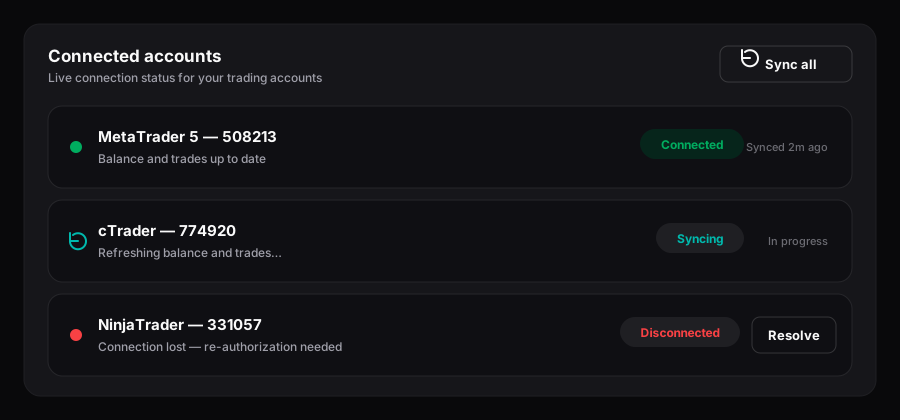
Connection statuses — connected, syncing, and disconnected with a Resolve action.
## Read connection status
Each account in **Accounts** shows one of three connection states:
| Status | Meaning |
| ---------------- | ----------------------------------------------------------------------------------------------------------- |
| **Connected** | The connection is authenticated and healthy. Balance, trades, and metadata are being kept current. |
| **Syncing** | A refresh is in progress. Accounts show this state while a sync runs. |
| **Disconnected** | Trada can no longer reach the account with the stored credentials. Data stops updating until you reconnect. |
Status, balance, and the underlying account data are stored server-side, so what you see is the same on every device you sign in from.
{% hint style="info" %}
Connection changes surface under the **Accounts** category in **Notifications** (the bell icon and `/notifications`). Notifications are in-app only — Trada does not send email or push alerts, so check the app if you rely on knowing when an account drops.
{% endhint %}
## Sync balances and data
The **Sync** action refreshes connection status and pulls the latest balance, trades, and platform metadata for your accounts.
{% stepper %}
{% step %}
### Open Accounts
Go to **Accounts** and select the **Forex** or **Futures** tab holding the account you want to refresh.
{% endstep %}
{% step %}
### Run Sync
Select **Sync**. Sync runs across all connected accounts at once, not one account at a time — every account moves to **Syncing** while it works.
{% endstep %}
{% step %}
### Confirm the result
When the sync completes, balances and statuses update in place. If an account cannot be reached, its status resolves to **Disconnected** and an error appears; if a sync does not complete within about 10 seconds, Trada shows an error so you can retry.
{% endstep %}
{% endstepper %}
Sync uses your existing stored credentials — it does not re-authenticate. If credentials have changed or expired on the platform side, sync alone will not restore the connection; you will need to reconnect (see below).
## Know what syncs, and when
Not all figures refresh the same way:
* **Live via WebSocket:** Equity and Open P\&L update in real time on Report views for connected accounts.
* **On sync or page refresh:** Balance, trade history, and account metadata update when you run **Sync** or reload the page. Balances also refresh periodically on their own.
If a balance looks stale, run **Sync** or reload before assuming something is wrong.
## Troubleshoot common connection problems
| Symptom | Likely cause | What to do |
| ----------------------------------------- | ------------------------------------------------------------------ | --------------------------------------------------------------------------------------------------------------------------------------------------------------------------------------------------------------------- |
| Account shows **Disconnected** | Credentials expired, platform session ended, or a temporary outage | Reconnect the account (steps below), then **Sync**. |
| Sync fails or times out for one account | Transient platform or network issue | Run **Sync** again after a moment. If it persists, check the account's credentials. |
| Reconnect keeps failing | Wrong login, server, or a rotated password/API key on the platform | Open **Edit** and confirm the login, server, and environment (Live/Demo). Update the credentials, then reconnect. Note that the platform itself is read-only on an existing account — the connection details are not. |
| cTrader connection drops | The secure sign-in (OAuth) authorization expired or was revoked | Re-authorize through cTrader's secure sign-in. cTrader connects via OAuth rather than stored credentials, so there is no password to re-enter. |
| All accounts on one platform fail at once | Platform maintenance or a broker/prop-firm-side outage | Wait and retry. This is outside Trada's control; the connection recovers once the platform is back. |
| A copier paused itself | A receiver or sender account disconnected | Reconnect the account, then resume the copier from its detail view. |
### Reconnect a disconnected account
{% stepper %}
{% step %}
### Locate the account
In **Accounts**, find the row (Forex) or connection (Futures) marked **Disconnected**.
{% endstep %}
{% step %}
### Re-authenticate
For credential-based platforms, open **Edit**, confirm or update the login and server, and reconnect. For cTrader, complete the secure sign-in (OAuth) authorization again.
{% endstep %}
{% step %}
### Sync and verify
Run **Sync** and confirm the status returns to **Connected** with an up-to-date balance.
{% endstep %}
{% endstepper %}
{% hint style="warning" %}
A disconnected sender or receiver auto-pauses any copier it belongs to. Reconnecting the account does not restart copying on its own — you must resume the copier, and pausing never closes open trades. Review those positions before you resume. See [Create a copier](/copy-trading/create-a-copier.md).
{% endhint %}
## Related
* [Create a copier](/copy-trading/create-a-copier.md)
* [Copy trading overview](/copy-trading/copy-trading.md)
* [Supported platforms](/connecting-accounts/supported-platforms.md)
* [Credential sets & OAuth](/connecting-accounts/credential-sets-oauth.md)
---
# Agent Instructions
This documentation is published with GitBook. GitBook is the documentation platform designed so that both humans and AI agents can read, navigate, and reason over technical content effectively. Learn more at gitbook.com.
## Querying This Documentation
If you need additional information that is not directly available in this page, you can query the documentation dynamically by asking a question.
Perform an HTTP GET request on the current page URL with the `ask` query parameter, and the optional `goal` query parameter:
```
GET https://docs.trada.io/connecting-accounts/syncing-troubleshooting.md?ask=&goal=
```
`ask` is the immediate question: it should be specific, self-contained, and written in natural language.
`goal` is optional and describes the broader end goal you are ultimately trying to accomplish on behalf of the user. GitBook uses it to tailor the answer towards what is most useful for that goal.
The response will contain a direct answer to the question and relevant excerpts and sources from the documentation.
Use this mechanism when the answer is not explicitly present in the current page, you need clarification or additional context, or you want to retrieve related documentation sections.