> For the complete documentation index, see [llms.txt](https://docs.trada.io/llms.txt). Markdown versions of documentation pages are available by appending `.md` to page URLs; this page is available as [Markdown](https://docs.trada.io/journal/group-journaling.md).
# Group journaling
Apply the same annotation to many similar trades at once, with a short undo window.
Group journaling copies one trade's annotations — its rating, emotional state, notes, and strategy — onto several similar trades in a single action, so you don't re-enter the same context trade by trade. It works entirely on the annotations you add; the underlying trades stay auto-synced from your connected accounts and are never changed.
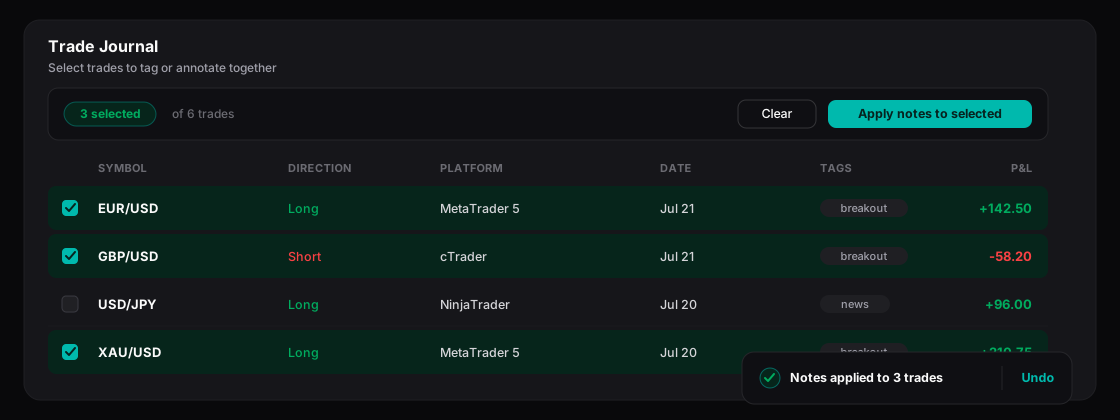
Group journaling — apply one trade’s notes to several at once, with a short undo.
## Before you begin
Group journaling lives on the trade journal, on the **Trades** tab, and starts from the **Group Journaling** button in the table header.
A trade counts as *journaled* once it has at least one of: a rating, an emotional state, notes, a setup type, or a strategy. Only a journaled trade can be the source you copy from, so you'll want at least one before you start. See [Journaling a trade](/journal/journaling-a-trade.md) for how to add those.
{% hint style="info" %}
If no trades are journaled yet, you can still enter the mode, but every row is dimmed and you can't get past selecting a source — journal one trade first, then return.
{% endhint %}
## Copy annotations in bulk
{% stepper %}
{% step %}
### Enter Group Journaling
On the **Trades** tab, select **Group Journaling** in the table header. Step 1 begins: journaled rows are selectable and marked with a green left border, while un-journaled rows dim to show they can't be a source.
{% endstep %}
{% step %}
### Pick the source trade
Click a journaled row to set it as the source. It's highlighted and locked, and Trada advances to Step 2 automatically. Only one source can be selected — to change it, use **Cancel** and start over.
{% endstep %}
{% step %}
### Select the target trades
A checkbox column appears on the left. Tick the un-journaled trades that should receive the same annotations. The source and any already-journaled trades stay disabled. There is no Select All — you choose each target deliberately.
{% endstep %}
{% step %}
### Apply
Select **Apply Journal (X)**, where X is the number of targets you've ticked. The source's annotations copy to every selected trade, the mode closes, and a confirmation toast appears with an **Undo** option.
{% endstep %}
{% endstepper %}
## What gets copied
The source trade's full annotation set is applied to each target:
| Field | Copied |
| ----------------------------------------------- | ------ |
| **Setup type** | Yes |
| **Rating** (1–5 stars) | Yes |
| **Emotional state** | Yes |
| **Notes** (full rich-text content) | Yes |
| **Strategy** and its checklist completion state | Yes |
| **Screenshots** | Yes |
Only parent-trade annotations are copied. Nothing about the trades themselves — their fills, size, or P\&L — is altered; those remain as synced from your account.
## Undo a bulk apply
The confirmation toast reports how many trades were updated and offers **Undo**.
{% hint style="warning" %}
The undo window lasts about 10 seconds. Selecting **Undo** within it reverts every target to its previous state and confirms with a short "Journal copy undone" message. Once the toast dismisses — or if you navigate away before it does — the copy becomes permanent and can't be undone from here.
{% endhint %}
## How selection behaves
* **Filters and pagination stay live.** You can filter by account, symbol, date range, or status and page through results while in the mode. Selected trade IDs persist across both, and the **Apply Journal (X)** count reflects every selected trade — not just the ones on the current page.
* **Partial executions** (child rows) can't be selected on their own. Only the parent trade acts as a source or target, and only its annotations are copied.
* **Sender and receiver trades are independent.** Picking a sender-side trade as the source does not auto-select its receiver-side counterpart; each is journaled separately.
* **No eligible targets?** If every other trade is already journaled, there are nothing left to select and **Apply Journal** never appears.
* **If an apply fails,** an error toast appears, the mode stays open, and your selections are kept so you can retry.
**Cancel** is always available while the mode is active. It clears your selections and returns the table to its normal state with no confirmation prompt.
## Related
* [Journaling a trade](/journal/journaling-a-trade.md)
* [Strategies](/journal/strategies.md)
* [Period reviews](/journal/period-reviews.md)
* [Conventions](/reference/conventions.md)
---
# Agent Instructions
This documentation is published with GitBook. GitBook is the documentation platform designed so that both humans and AI agents can read, navigate, and reason over technical content effectively. Learn more at gitbook.com.
## Querying This Documentation
If you need additional information that is not directly available in this page, you can query the documentation dynamically by asking a question.
Perform an HTTP GET request on the current page URL with the `ask` query parameter, and the optional `goal` query parameter:
```
GET https://docs.trada.io/journal/group-journaling.md?ask=&goal=
```
`ask` is the immediate question: it should be specific, self-contained, and written in natural language.
`goal` is optional and describes the broader end goal you are ultimately trying to accomplish on behalf of the user. GitBook uses it to tailor the answer towards what is most useful for that goal.
The response will contain a direct answer to the question and relevant excerpts and sources from the documentation.
Use this mechanism when the answer is not explicitly present in the current page, you need clarification or additional context, or you want to retrieve related documentation sections.