> For the complete documentation index, see [llms.txt](https://docs.trada.io/llms.txt). Markdown versions of documentation pages are available by appending `.md` to page URLs; this page is available as [Markdown](https://docs.trada.io/journal/journaling-a-trade.md).
# Journaling a trade
Annotate a trade with a rating, emotional state, notes, and a strategy tag in the trade journal modal.
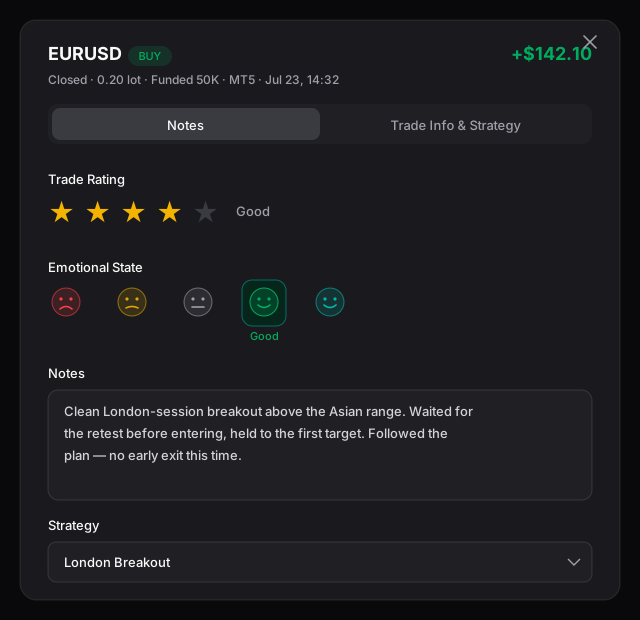
The trade journal modal lets you attach reflection to any closed trade: a star rating, an emotional-state marker, free-form notes, and a strategy tag with a rule checklist. The trade's execution data is pulled in automatically from your connected account and stays read-only — you annotate around it, you never edit it.
The trade journal — a star rating, emotional state, free-form notes, and a strategy tag on read-only execution data.
## Open the trade journal
The modal opens from the journal icon on any closed trade, wherever closed trades appear — the journal table, the calendar day, week, and month views, strategy tabs, and copy-trading views.
{% stepper %}
{% step %}
### Find a closed trade
All trades are auto-synced from your connected accounts. Only **closed** trades can be journaled — open positions have no journal icon.
{% endstep %}
{% step %}
### Click the journal icon
The modal opens on the **Notes** tab by default. If you have journaled this trade before, your saved rating, notes, strategy, and checklist are pre-filled.
{% endstep %}
{% endstepper %}
The modal has two tabs — **Notes** and **Trade Info & Strategy** — and a header holding the **Save Changes** and **Close** buttons. Switching tabs never saves and never discards; unsaved edits carry across both tabs until you save or close.
{% hint style="info" %}
Trada is journaling and trade-copier software. It records what you did and how you felt about it — it does not give investment advice, and nothing here predicts or promises a result.
{% endhint %}
## Rate the trade
On the **Notes** tab, **Trade Rating** is a 0–5 star control for scoring how well you executed. Click a star to set the rating; every star up to and including it fills. Clicking a filled star does not clear the rating — the rating stays until you pick a different one.
| Stars | Label |
| ----- | --------- |
| 0 | Not rated |
| 1 | Bad |
| 2 | Poor |
| 3 | Regular |
| 4 | Good |
| 5 | Excellent |
## Log your emotional state
**Emotional State** captures how you felt while executing, on a 1–5 emoji scale. Select one emoji; the previous selection clears. On desktop, hovering an emoji shows a tooltip with the label and the emotions it covers.
| Level | Emoji | Label | Covers |
| ----- | ----- | --------- | ----------------------------------------- |
| 1 | 😡 | Bad | Angry, fearful, panicked, revenge-driven |
| 2 | 😰 | Poor | Anxious, frustrated, stressed, uncertain |
| 3 | 😐 | Regular | Neutral, stable, detached, indifferent |
| 4 | 😌 | Good | Calm, controlled, patient, balanced |
| 5 | 😎 | Excellent | Focused, confident, relaxed, clear-minded |
Rating and emotional state both default to "Not rated" and are independent — you can set one without the other.
## Write notes
**Trade Notes** is a rich-text editor for your analysis. When empty it shows the prompt *"What was your analysis? What went well? What could be improved?"*
Supported formatting:
* **Bold**, *italic*, and underline
* Headings (H1–H3)
* Bullet and numbered lists
* Links
* Text alignment (left, center, right)
* Inline images pasted or uploaded, up to 1 MB each
The editor starts at 400px tall and grows with your content, scrolling internally once it overflows. Notes are stored as sanitized HTML, so formatting is preserved when you reopen the trade. Pasted content over 1 MB per image is rejected with an inline error.
## Review the execution data
Open the **Trade Info & Strategy** tab to see the trade's execution details. Every field here is auto-synced from the connected account and read-only — the **Trade ID** carries a **Locked** badge, with the tooltip "Trade details are synced automatically and can't be modified."
Read-only fields include:
| Field | Notes |
| ------------------------------- | ---------------------------------------------------------------- |
| Trade ID, Account, Symbol | Long values truncate with an ellipsis; hover for the full text |
| Side | **BUY** (green) or **SELL** (red) badge |
| Volume | Contracts for futures, lots for forex |
| Order Type, Copier, Type | Master / Receiver shown as **M** / **R** |
| P\&L and P\&L % | Green when positive, red when negative, neutral at exactly $0.00 |
| Fees, Swap Fee, Pips/Ticks | Pips for forex, ticks for futures |
| Open Time, Close Time, Duration | Timestamps follow your timezone convention |
| Open Price, Close Price | Up to five decimal places |
Missing values show as `-` or `N/A` rather than a blank. There is no manual trade entry, editing, or deletion anywhere in Trada — everything you see was synced from your account.
{% hint style="info" %}
Below the read-only grid, **Stop Loss**, **Profit Target**, and **Risk** are editable number inputs. Use them to record the levels you planned for the trade; leaving them blank is fine. Editing any of them enables **Save Changes**.
{% endhint %}
## Tag a strategy and check rules
The strategy selector links a trade to one of your saved strategies so you can score how closely you followed your own rules. It records adherence to your process — how consistently you executed — not any expected return.
{% stepper %}
{% step %}
### Pick a strategy
Open the dropdown (placeholder **Select your strategy**) and choose one. Selecting a strategy loads its rule sections and resets every checkbox to unchecked, so each journal entry reflects that specific trade.
{% endstep %}
{% step %}
### Work through the checklist
Rules are grouped into collapsible sections (Setup Definitions, Entry Rules, Stop-Loss Policy, and more). Expand a section and tick the rules you followed. Each section shows an "X of Y" counter.
{% endstep %}
{% step %}
### Watch the progress bar
The bar sums checked rules across all sections into a completion percentage, from "Not Started" at 0% to "Perfect" at 100%. It is a measure of rule adherence for this one trade.
{% endstep %}
{% endstepper %}
{% hint style="info" %}
The strategy checklist is available on paid plans. On the free plan the dropdown is disabled and prompts you to upgrade; see [Plans & billing](/plans-and-billing/plans-billing.md). Building the strategies themselves is covered in [Strategies](/journal/strategies.md).
{% endhint %}
## Save your entry
Changes are not auto-saved. The **Save Changes** button stays disabled until you modify a field — rating, emotion, notes, Stop Loss, Profit Target, Risk, strategy, or a checkbox — then click it to persist everything to the database. A success toast, "Journal entry saved successfully," confirms the write. Toasts are in-app only. Saved entries sync to every device where you are signed in.
{% hint style="warning" %}
Closing the modal with unsaved edits — via **Close**, the ESC key, clicking outside, or navigating away — prompts "You have unsaved changes. Discard or keep editing?" Choosing **Discard Changes** permanently loses those edits. Choose **Keep Editing** to return to the modal, then **Save Changes**.
{% endhint %}
## Related
* [Journal overview](/journal/journal.md)
* [Group journaling](/journal/group-journaling.md)
* [Strategies](/journal/strategies.md)
* [Connecting accounts](/connecting-accounts/connecting-accounts.md)
---
# Agent Instructions
This documentation is published with GitBook. GitBook is the documentation platform designed so that both humans and AI agents can read, navigate, and reason over technical content effectively. Learn more at gitbook.com.
## Querying This Documentation
If you need additional information that is not directly available in this page, you can query the documentation dynamically by asking a question.
Perform an HTTP GET request on the current page URL with the `ask` query parameter, and the optional `goal` query parameter:
```
GET https://docs.trada.io/journal/journaling-a-trade.md?ask=&goal=
```
`ask` is the immediate question: it should be specific, self-contained, and written in natural language.
`goal` is optional and describes the broader end goal you are ultimately trying to accomplish on behalf of the user. GitBook uses it to tailor the answer towards what is most useful for that goal.
The response will contain a direct answer to the question and relevant excerpts and sources from the documentation.
Use this mechanism when the answer is not explicitly present in the current page, you need clarification or additional context, or you want to retrieve related documentation sections.