> For the complete documentation index, see [llms.txt](https://docs.trada.io/llms.txt). Markdown versions of documentation pages are available by appending `.md` to page URLs; this page is available as [Markdown](https://docs.trada.io/plans-and-billing/billing-invoices.md).
# Billing & invoices
Manage your payment method and download invoices.
The **Billing** page is where you review your current plan, track usage against your plan limits, manage the cards saved with Stripe, and pull any invoice from your account history. Open it from **Billing** in the sidebar.
{% hint style="info" %}
All amounts are shown and charged in **USD**. Trada does not yet support other currencies, tax/VAT breakdowns, or promo codes.
{% endhint %}
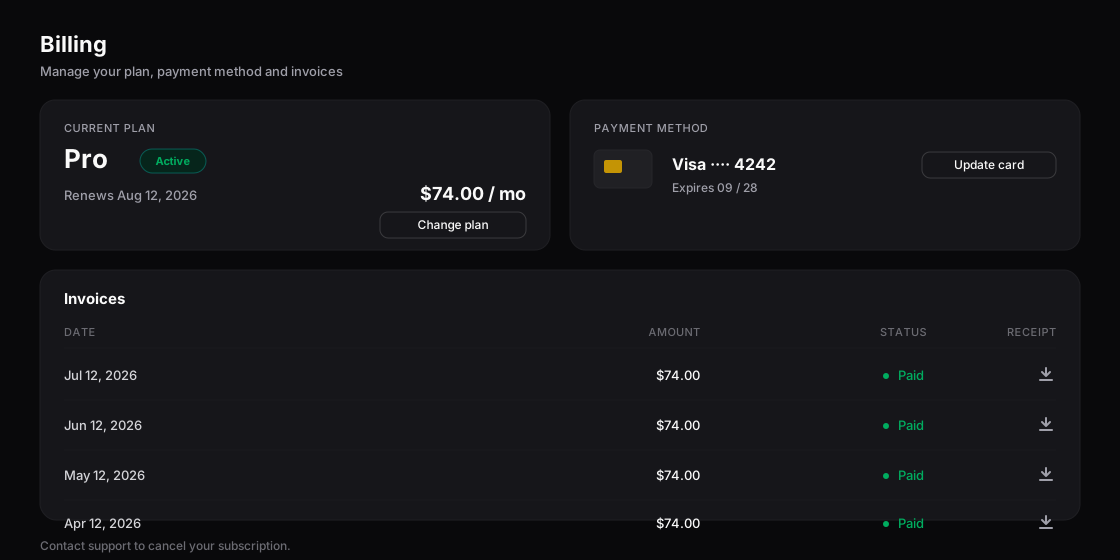
The Billing page — current plan, saved card, and invoices.
## Review your current plan
The **Current Plan** card summarizes what you are on and what happens next.
| Field | What it shows |
| ------------------- | ------------------------------------------------------------------------------------------- |
| Plan | Your tier — Free, Starter, Pro, Elite, or Enterprise |
| Price | The monthly amount (yearly subscriptions show the monthly equivalent, not the annual total) |
| Next Billing Amount | The upcoming charge, including any extra accounts |
| Next Billing Date | The renewal date, formatted `YYYY-MM-DD` |
On the **Free** plan, the billing amount shows `$0` and the date shows `—`, because there is nothing to charge. Use **Upgrade** on this card to change tiers — see [Upgrade & downgrade](/plans-and-billing/upgrade-downgrade.md).
## Check your usage
The **Usage** card tracks how much of your plan you are using, with a progress bar for each limit:
* **Accounts** — connected accounts against your plan limit (for example `2 / 5`).
* **Copy Trading** — active copiers against your plan limit (for example `1 / 2`).
Unlimited allowances display as `X / Unlimited`. When a limit is fully used, a **Limit Reached** badge appears on the card. Extra accounts can be added from here via **Add Extra Accounts** — see [Extra accounts](/plans-and-billing/add-ons.md).
## Manage payment methods
Payment methods are saved and processed through **Stripe**. Each saved card shows its brand, last four digits, and expiry, and one card carries the **Default** badge.
{% stepper %}
{% step %}
### Open payment methods
On the **Payment Methods** card, select **Add Method**.
{% endstep %}
{% step %}
### Enter the card details
Fill in the card number, expiry (`MM/YY`), CVC, cardholder name, and ZIP code. The form validates each field before it will save.
{% endstep %}
{% step %}
### Save the card
The card is stored with Stripe and appears in your list. If it is your only card, it becomes the default automatically.
{% endstep %}
{% endstepper %}
**Setting a default.** With two or more cards saved, select **Set as Default** on the card you want charged. The change applies immediately.
{% hint style="info" %}
There is no in-place card editing. To update a card's details, delete it and add it again as a new card.
{% endhint %}
{% hint style="warning" %}
On a paid plan you must keep at least one valid card on file. Deleting your only card is blocked. If you delete the default while other cards exist, you will be asked to choose a new default before the deletion completes.
{% endhint %}
On the **Free** plan no card is required, so the card list shows a neutral **No Payment Method Required** state. You may still add a card ahead of time if you plan to upgrade.
## Download invoices
The **Billing History** table lists every invoice since your account was created — newest first, with no time limit. On the Free plan it shows a neutral **No payment history yet** state until your first charge.
| Column | Contents |
| ----------- | --------------------------------------------------------------------------------------- |
| Date | When the charge occurred |
| Description | What the charge was for |
| Amount | Charged amount in USD |
| Method | Card brand and last four digits (for example `•••• 4242`); refunds and credits show `—` |
| Status | **Paid**, **Failed**, **Pending**, or **Refunded** |
| Invoice | **Download** button for that invoice |
Select **Download** on any row to retrieve its invoice. If a download fails, a **Retry** action appears so you can try again; if it continues to fail, use the **Contact Support** link on the error notice. Past invoices stay available even if your subscription has lapsed.
## Recover from a failed payment
If a renewal charge fails, Trada does not cut off access right away.
{% hint style="warning" %}
A **3-day grace period** begins after a failed charge. During those three days you keep full access to your current plan, and a banner on the Billing page prompts you to update your payment method. If the payment is still not resolved after three days, the subscription is marked **Expired** and your account reverts to Free plan limits — connections beyond 2 accounts are disconnected and copiers beyond 1 are paused.
{% endhint %}
To recover, add or update a valid card from the **Payment Methods** card. Updating a working card reactivates the subscription. Your billing history and past invoices remain accessible throughout.
## Cancel a subscription
Cancellation is **not self-service** in the current version — there is no cancel button on the Billing page.
{% hint style="info" %}
To cancel, contact support and the team will process it for you. A cancellation takes effect at the end of your current billing period; you keep paid-plan benefits until then, after which the account reverts to Free plan limits.
{% endhint %}
## Related
* [Upgrade & downgrade](/plans-and-billing/upgrade-downgrade.md) — change plan tiers and how proration works
* [Extra accounts](/plans-and-billing/add-ons.md) — add capacity beyond your plan limit
* [Free Starter](/plans-and-billing/free-starter.md) — qualify for a no-cost plan through a partnered account
* [FAQ](/reference/faq.md) — common billing and account questions
---
# Agent Instructions
This documentation is published with GitBook. GitBook is the documentation platform designed so that both humans and AI agents can read, navigate, and reason over technical content effectively. Learn more at gitbook.com.
## Querying This Documentation
If you need additional information that is not directly available in this page, you can query the documentation dynamically by asking a question.
Perform an HTTP GET request on the current page URL with the `ask` query parameter, and the optional `goal` query parameter:
```
GET https://docs.trada.io/plans-and-billing/billing-invoices.md?ask=&goal=
```
`ask` is the immediate question: it should be specific, self-contained, and written in natural language.
`goal` is optional and describes the broader end goal you are ultimately trying to accomplish on behalf of the user. GitBook uses it to tailor the answer towards what is most useful for that goal.
The response will contain a direct answer to the question and relevant excerpts and sources from the documentation.
Use this mechanism when the answer is not explicitly present in the current page, you need clarification or additional context, or you want to retrieve related documentation sections.