> For the complete documentation index, see [llms.txt](https://docs.trada.io/llms.txt). Markdown versions of documentation pages are available by appending `.md` to page URLs; this page is available as [Markdown](https://docs.trada.io/plans-and-billing/upgrade-downgrade.md).
# Upgrade & downgrade
Change plans — upgrades apply immediately, downgrades take effect at the end of the cycle.
Trada plans change in two directions with two different timings. Upgrades apply the moment payment clears; downgrades are scheduled and take effect at the end of your current billing cycle, so you keep what you're paying for until then.
{% hint style="info" %}
Pricing and payments are USD only. Yearly billing applies a 20% discount versus paying monthly. Plan changes are handled in-app; subscription **cancellation** is not self-service — see [Cancel a subscription](#cancel-a-subscription).
{% endhint %}
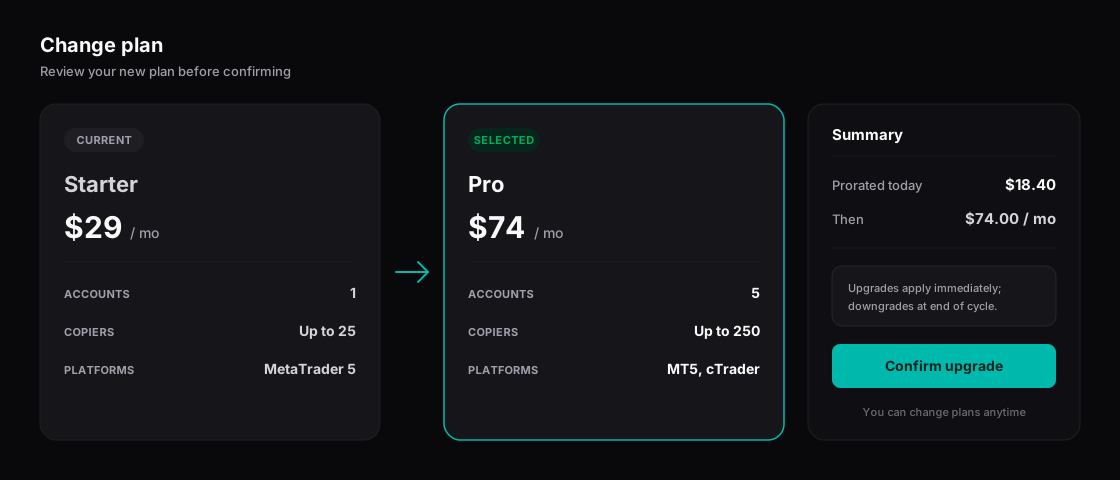
Changing plans — upgrades apply immediately with a prorated summary.
## Upgrade a plan
Upgrading opens the plan picker, then a Stripe payment step. The change is applied immediately — the new account and copier limits are usable as soon as the charge succeeds.
{% stepper %}
{% step %}
### Open the plan picker
Use **Upgrade Plan** on the `/billing` page, or the **Upgrade** button in the sidebar. The picker also opens automatically when you hit a limit — for example, adding an account beyond your current plan's allowance.
{% endstep %}
{% step %}
### Choose a billing period
Toggle between **Monthly** and **Yearly** (**Save 20%**). All plan prices, extra-account prices, and the summary total update as you switch.
{% endstep %}
{% step %}
### Select a plan and any extra accounts
Pick a higher tier, and optionally expand **Need more accounts?** to add extra accounts. The summary shows the total and the next billing date before you commit.
{% endstep %}
{% step %}
### Resolve the tier recommendation, if shown
If your extras make a higher tier better value, a recommendation appears and blocks the button until you accept it or reduce extras. See [Follow the tier recommendation](#follow-the-tier-recommendation).
{% endstep %}
{% step %}
### Pay with Stripe
Continue to **Complete Your Purchase**, pay with a saved card, a new card, or express checkout. On success the subscription updates in real time across your devices; you stay on the `/billing` page.
{% endstep %}
{% endstepper %}
**Proration.** A mid-cycle upgrade charges the prorated difference between your old and new plan for the days remaining in the cycle, and your billing date stays aligned to its original day. A first upgrade from Free charges the full month or year and starts a new cycle from today. Proration is calculated by Stripe, not client-side.
## Follow the tier recommendation
When the base plan price plus your extra-accounts cost reaches the next tier's price, Trada surfaces a smart recommendation — for example, Starter plus enough extras to match Pro suggests moving to Pro instead.
* The recommendation checks **one tier up** only.
* It is **blocking**: the action button is disabled while it shows. You must either accept the suggested tier (which resets extra accounts to 0) or reduce extras until it clears.
* Enterprise is the top tier, so it never shows a recommendation.
## Downgrade a plan
Selecting a lower tier turns the action button into a destructive **Downgrade to \[Plan]** and starts a two-step confirmation. Downgrades never open the payment step and never charge.
{% hint style="warning" %}
A downgrade is scheduled but irreversible in effect: at cycle end, accounts beyond your new limit are disconnected and cannot be automatically restored — you'd reconnect them manually if you upgrade again later.
{% endhint %}
{% stepper %}
{% step %}
### Select a lower tier
In the plan picker, choose a plan below your current one. The button becomes red with a warning tooltip.
{% endstep %}
{% step %}
### Review the first confirmation
**Confirm Downgrade** lists what will change — accounts beyond the new limit disconnected, extra copiers paused, premium features lost — and states the effective date: the end of your current billing cycle. Choose **I Understand, Proceed with Downgrade**.
{% endstep %}
{% step %}
### Confirm the final warning
**Final Confirmation** restates that the change cannot be undone. Choose **Yes, Downgrade Now** to schedule it.
{% endstep %}
{% step %}
### Keep your current plan until cycle end
Nothing changes right away. You retain your current tier's benefits until the cycle ends, when the new limits are applied automatically.
{% endstep %}
{% endstepper %}
### What Trada keeps automatically
You do **not** choose which accounts survive a downgrade. When the new plan allows fewer accounts than you have connected, Trada keeps the **2 oldest connected accounts** by connection date (alphabetical by account name breaks a same-date tie) and disconnects the rest. Extra copiers are **paused, not deleted**, and can be reactivated if you upgrade again; copiers within the new limit keep running.
## Understand what changes at cycle end
| Timing | Upgrade | Downgrade |
| --------------- | --------------------------- | ------------------------------------ |
| When it applies | Immediately after payment | End of current billing cycle |
| Payment | Prorated charge now | No charge; no refund for unused time |
| Account limits | Raised immediately | Lowered at cycle end; 2 oldest kept |
| Copiers | New allowance available now | Extra copiers paused at cycle end |
## Recover from a failed payment
If a renewal charge fails, your subscription enters a **3-day grace period** rather than expiring at once.
* During the 3 days you keep your current plan's benefits, and Trada retries the charge.
* A banner appears on the `/billing` page — "Payment method failed. Please update it to regain access." — with an **Update Payment Method** action. This notice is in-app only.
* If no charge succeeds within the 3 days, the subscription is marked **expired** and reverts to Free limits (2 accounts, 1 copier). Accounts beyond the Free limit are disconnected immediately and extra copiers are paused, with no further grace.
To reactivate, open the plan picker (its title becomes **Reactivate Your Subscription**), select a plan again, and complete payment — reactivation is immediate on success.
## Cancel a subscription
There is no self-service cancel button. To cancel, contact support. A cancellation is scheduled for the end of the current billing period; you keep paid benefits until then, and the account reverts to Free limits when the period ends.
## Related
* [Free Starter plan](/plans-and-billing/free-starter.md)
* [Extra accounts & add-ons](/plans-and-billing/add-ons.md)
* [Billing & invoices](/plans-and-billing/billing-invoices.md)
* [Connecting accounts](/connecting-accounts/connecting-accounts.md)
---
# Agent Instructions
This documentation is published with GitBook. GitBook is the documentation platform designed so that both humans and AI agents can read, navigate, and reason over technical content effectively. Learn more at gitbook.com.
## Querying This Documentation
If you need additional information that is not directly available in this page, you can query the documentation dynamically by asking a question.
Perform an HTTP GET request on the current page URL with the `ask` query parameter, and the optional `goal` query parameter:
```
GET https://docs.trada.io/plans-and-billing/upgrade-downgrade.md?ask=&goal=
```
`ask` is the immediate question: it should be specific, self-contained, and written in natural language.
`goal` is optional and describes the broader end goal you are ultimately trying to accomplish on behalf of the user. GitBook uses it to tailor the answer towards what is most useful for that goal.
The response will contain a direct answer to the question and relevant excerpts and sources from the documentation.
Use this mechanism when the answer is not explicitly present in the current page, you need clarification or additional context, or you want to retrieve related documentation sections.