> For the complete documentation index, see [llms.txt](https://docs.trada.io/llms.txt). Markdown versions of documentation pages are available by appending `.md` to page URLs; this page is available as [Markdown](https://docs.trada.io/reports-and-analytics/share-public-report.md).
# Share a public report
Publish a read-only snapshot of a report at a public link.
Publish a read-only snapshot of any report at a public link that anyone can open without signing in. The snapshot is a point-in-time capture — it does not change as new trades sync in.
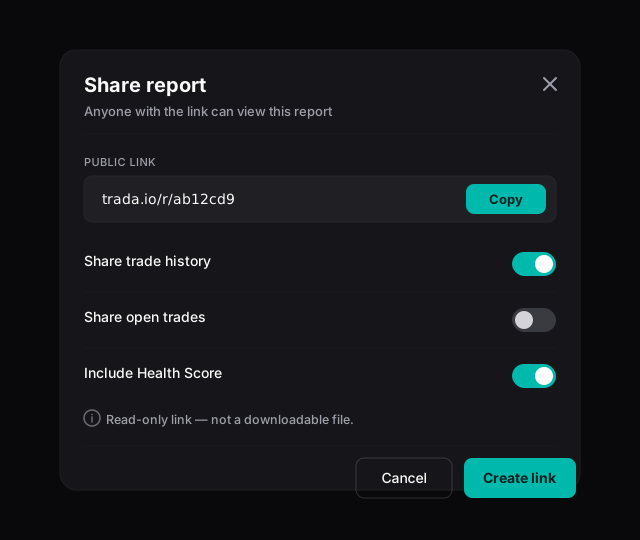
The share dialog — a read-only public link with toggles for what it includes.
## Understand what a snapshot is
When you publish, Trada saves a copy of your report as it looks at that moment: the filtered trades, the metrics, and the settings you chose. That copy is served live at a public URL as a read-only web page. There is no file to download and nothing to install.
{% hint style="info" %}
The snapshot is frozen at publish time. Trades that sync in afterward do **not** appear in an already-published link. To share newer numbers, publish again. All trades are auto-synced from your connected accounts — there is no manual entry, editing, or deletion, so the snapshot always reflects real synced activity as of the moment you published.
{% endhint %}
## Open the share dialog
{% stepper %}
{% step %}
### Open a report
Go to the report you want to share and open the **Reports** page.
{% endstep %}
{% step %}
### Click Share
Click **Share Performance** in the report header. The dialog opens on the **Link** tab.
{% endstep %}
{% step %}
### Turn on Public sharing
Toggle **Public sharing** on. Its description reads "Allow anyone with the link to view this report." The link and share options appear only while this toggle is on.
{% endstep %}
{% endstepper %}
## Choose what the snapshot includes
Set these before you copy the link. Your choices are baked into the snapshot at publish time.
| Setting | What it controls | Default |
| ----------------------- | ---------------------------------------------------------------------------------- | ------------ |
| **Account data** | Publish **All Accounts** or a single connected account. Search the list to filter. | All Accounts |
| **Share Trade History** | Include closed trades in the shared report. | On |
| **Share Open Trades** | Include currently open trades in the shared report. | Off |
Changing **Account data** updates the data the snapshot will contain; it does not change the link's address.
## Copy and share the link
{% stepper %}
{% step %}
### Copy the link
In the **Shareable Link** field, click **Copy**. A "Link copied to clipboard" toast confirms it. The field is read-only — the address is generated for you.
{% endstep %}
{% step %}
### Send it anywhere
Paste the link into a message, or use the social share buttons in the dialog (Facebook, Twitter/X, Instagram, WhatsApp, Telegram) to open a pre-filled post. Each opens the chosen platform in a new tab; nothing posts until you confirm it there.
{% endstep %}
{% endstepper %}
{% hint style="warning" %}
A public link needs no login — anyone who has it can open the snapshot. Only share it with people you intend to. To stop sharing, turn **Public sharing** off in the dialog.
{% endhint %}
## What viewers see
Anyone opening the link gets a live, read-only web page — never a downloadable file or a certificate. They cannot edit, filter, or export it. The page shows only what your settings allowed: the selected account data, closed trades if **Share Trade History** is on, and open trades if **Share Open Trades** is on. It can include your Trading Health Score, which summarises how your process is running — discipline and consistency — and is not a prediction or promise of returns.
{% hint style="info" %}
Publishing and sharing are available on paid plans. Free and Starter tiers can view their own reports but cannot publish a public snapshot. See [Plans & billing](/plans-and-billing/plans-billing.md).
{% endhint %}
## A note on interpreting shared reports
A shared report describes past, already-synced activity. It is not a forecast, a guarantee, or investment advice, and past results do not indicate future outcomes. Trada is journaling and trade-copier infrastructure, not a broker or adviser. Please read the [risk disclaimer](/reference/legal.md) before sharing performance publicly.
## Related
* [Reports overview](/reports-and-analytics/reports.md)
* [Trading Health Score](/reports-and-analytics/health-score.md)
* [Filters](/reports-and-analytics/filters.md)
* [Risk disclaimer](/reference/legal.md)
---
# Agent Instructions
This documentation is published with GitBook. GitBook is the documentation platform designed so that both humans and AI agents can read, navigate, and reason over technical content effectively. Learn more at gitbook.com.
## Querying This Documentation
If you need additional information that is not directly available in this page, you can query the documentation dynamically by asking a question.
Perform an HTTP GET request on the current page URL with the `ask` query parameter, and the optional `goal` query parameter:
```
GET https://docs.trada.io/reports-and-analytics/share-public-report.md?ask=&goal=
```
`ask` is the immediate question: it should be specific, self-contained, and written in natural language.
`goal` is optional and describes the broader end goal you are ultimately trying to accomplish on behalf of the user. GitBook uses it to tailor the answer towards what is most useful for that goal.
The response will contain a direct answer to the question and relevant excerpts and sources from the documentation.
Use this mechanism when the answer is not explicitly present in the current page, you need clarification or additional context, or you want to retrieve related documentation sections.